
Quick Answer
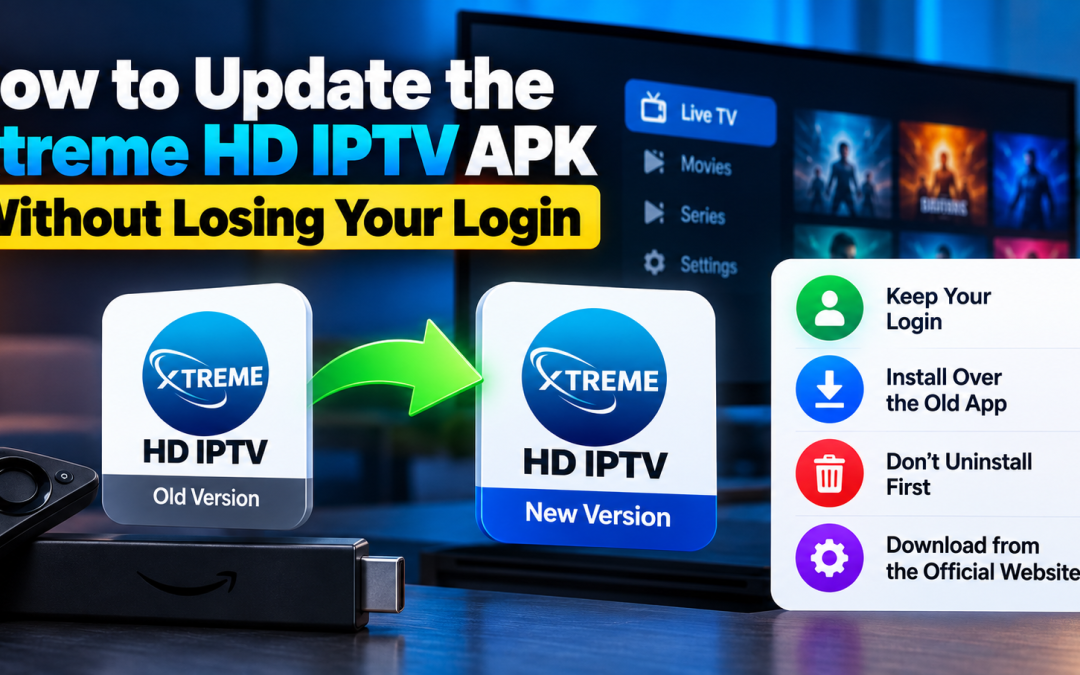
Install the new version over the old one instead of uninstalling first, and save your username, password, and portal URL before you start. Updating over the top normally keeps the app’s stored data. Uninstalling, clearing app data, or resetting the device removes it, and you’ll have to sign in again. Download updates only from the official website.
Why Do Updates Sometimes Log You Out?
Your login lives in the app’s private storage, and how you update decides whether it survives.
A signature conflict happens when the new file was signed with a different key from the installed one. Android refuses the update, and the only way forward is to uninstall, which clears your login. This can be a harmless packaging difference, but it can also mean the file isn’t the original. Read our guide on whether the Xtreme HD IPTV APK is safe before you remove anything.
Installing over the existing app replaces the program but normally keeps its data.
Uninstalling first deletes the app and its data together.
What Keeps Your Login and What Wipes It
| Action | Keeps your login? | Why |
| Installing the new APK over the old app | Usually yes | App data stays in place |
| Using an in-app update, if the app offers one | Usually yes | Same app, new version |
| Clearing the app cache only | Usually yes | Cache holds temporary files, not account data |
| Clearing app data or storage | No | Removes saved settings and sign-in |
| Uninstalling, then installing again | No | App data is deleted with the app |
| Factory reset | No | Erases the whole device |
Treat “usually” as a reason to back up first, not as a guarantee.
What Should You Do Before Updating?
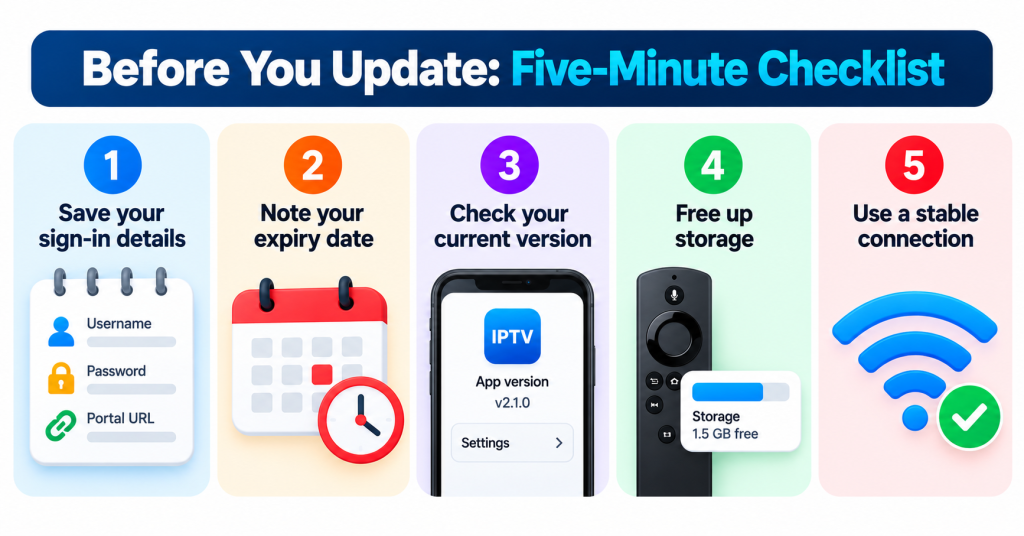
Spend five minutes on these four checks:
- Save your sign-in details. Store your username, password, and portal URL in a password manager, exactly as they were sent to you.
- Note your subscription expiry date. Your plan is tied to your account with the provider, not the app, so an update doesn’t change it. The date helps you spot a real problem later.
- Compare versions. Check the version in the app’s settings against the official site. If they match, you may not need to update.
- Free up space and use a stable connection. Low storage and broken downloads are the most common causes of failed installs, especially on Firestick.
How to Update Step by Step
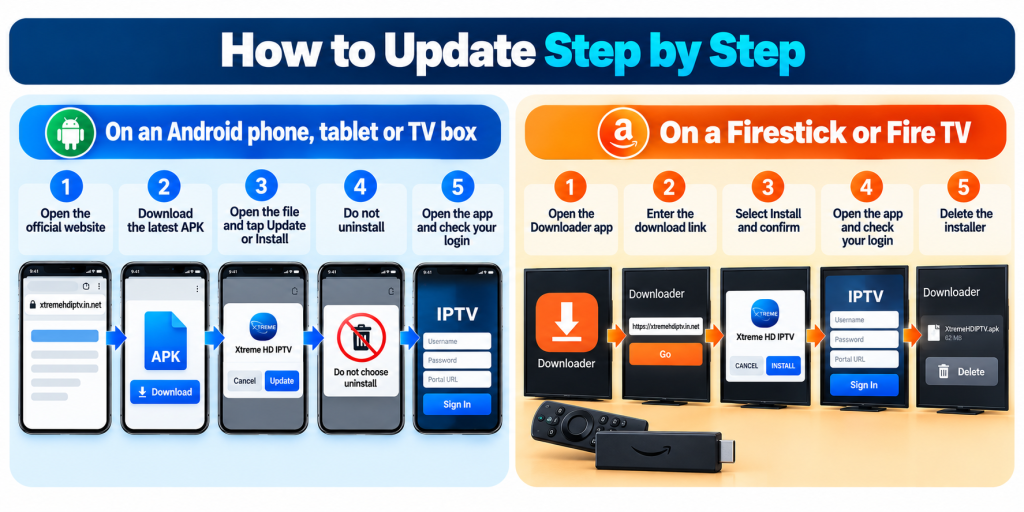
On an Android phone, tablet or TV box
- Open the official Xtreme HD IPTV website by typing the address yourself.
- Download the latest APK from the app or download page.
- Open the downloaded file and choose Update or Install.
- Do not choose uninstall when asked to confirm.
- Open the app and check that you are still signed in.
On a Firestick or Fire TV
- Open the Downloader app.
- Enter the official download link for the latest version.
- When the file finishes, select Install and confirm the update.
- Open the app and check your sign-in and channel list.
- Delete the downloaded installer to save space.
For the first-time setup, including enabling installs for Downloader, follow the Firestick setup guide and the full APK download guide. They are not repeated here.
Make Sure the Update Is Genuine
Update prompts are a favourite trick for spreading fake files. Before installing:
- Ignore update messages that arrive by chat, email or social media.
- Do not follow an in-app prompt that opens an unfamiliar website.
- Compare the file name and version with what the official site lists.
The full verification routine is in our APK safety guide.
After the Update: What to Check
- You are still signed in, or sign-in works with your saved details.
- The channel list and program guide load.
- Favourites and playback settings are as you left them. Some settings can reset, so re-check anything you rely on.
- Playback runs smoothly for a few minutes on a live channel.
- The permission list in your device’s app settings has not grown. An update that suddenly asks for contacts or SMS access is a reason to remove it.
If You Were Logged Out Anyway
- Sign in again with your saved username, password and portal URL. Copy and paste to avoid stray spaces.
- Check the subscription date to rule out an expired plan.
- Check the connection limit. If another device is signed in on the same account, a new sign-in may be blocked.
- Restart the app and the device, then try again.
- Contact support with your order details if the details are rejected.
More fixes are in the login guide.
When the Update Itself Fails
| Message or symptom | Likely cause | What to try |
| “App not installed” | Low storage, or a signature conflict with the installed version | Free space and retry; if it persists, verify the file’s source before uninstalling |
| “There was a problem parsing the package” | Incomplete download or a file your Android version cannot run | Download again on a stable connection and check device compatibility |
| Update button greyed out | Installs from this source are not allowed | Allow installs for that one app only, then turn it off afterward |
| App opens to a blank channel list | Cached data from the old version | Clear the cache, not the data, then reopen |
| App crashes after updating | Damaged install | Reinstall from the official file after saving your login details |
If none of these help, work through the troubleshooting guide.
Habits That Make Updating Painless
- Keep your sign-in details in a password manager, not only on the device.
- Check the official site for new versions at a regular interval instead of waiting for something to break.
- Update one device at a time so you can spot problems early.
- Keep roughly 1 GB free on a Firestick or TV box.
- Never install an update from a link you did not type or choose yourself.
Final Thoughts
A smooth update comes down to three habits: save your login details first, install over the existing app instead of uninstalling, and take the file only from the official website. If anything looks wrong, stop before you uninstall.
New to the service? Start with what Xtreme HD IPTV is and what to check before you subscribe.
Need the latest version? Visit the official Xtreme HD IPTV website and use the download link there.
FAQs
Do I need to uninstall the old version before updating?
No. Install the new version over the old one. Uninstalling first removes the app’s stored data, including your saved login.
Will updating cancel or reset my subscription?
No. Your subscription is held by the provider against your account, not inside the app. An update changes the software only.
Will my favourites and settings survive an update?
Often they do, but some settings can reset. Note anything important beforehand so you can restore it.
How often should I update the APK?
Check the official website regularly and update when a new version is listed, especially if it mentions fixes.
Do I have to update every device separately?
Yes. Each device keeps its own copy of the app, so update them one at a time.
Why does the update say the app was not installed?
The usual causes are low storage or a conflict with the installed version. Free some space first, then check that the file came from the official site.

Have you ever used a Bitcoin so far? If not then don’t worry, we have a solution for you to Read more

Internet-based television has transformed how users access live channels, movies, and on-demand content. Among the many IPTV services available today, Read more

The Xtreme HD IPTV Channel list offers one of the most extensive collections of live TV channels, premium sports, movies, Read more

Staying current in the ever-evolving realm of television and entertainment is vital. Gone are the days when only limited options Read more