
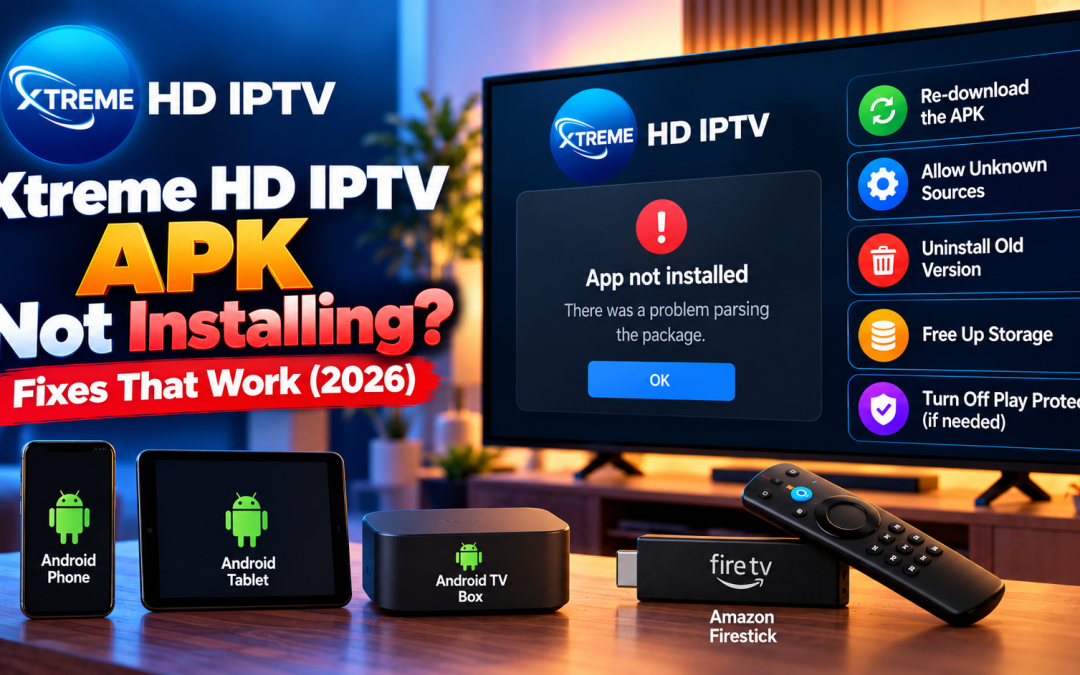
You downloaded the APK, tapped it, and got an error instead of an app. It is frustrating, but it is almost always fixable in a few minutes. If the Xtreme HD IPTV APK is not installing on your Android phone, Android TV box or Firestick, this guide walks through the most common causes and the exact steps to solve each one.
Quick answer
If the APK will not install, the most common causes are a damaged download, a blocked install permission, an old version still on the device, low storage, an unsupported Android version, or Play Protect blocking the file. Fix it in this order:
- Delete the file and download it again from the official website.
- Allow installs from unknown sources for your browser, file manager or Downloader app.
- Uninstall any older version, then restart your device.
- Free up at least 1 GB of storage.
- Check that your Android version meets the minimum requirement.
The detailed steps for each fix are below.
Why an APK fails to install
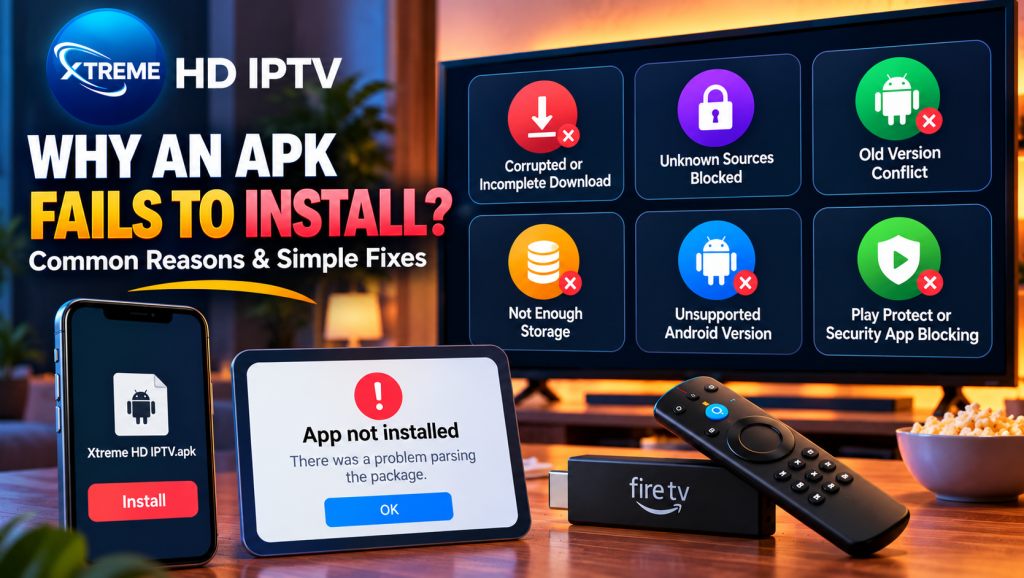
Android blocks an installation when it cannot trust or read the file, or when something on your device gets in the way. The usual reasons are:
- The file did not finish downloading, or it is corrupted
- Your device is blocking installs from unknown sources
- An older version of the app conflicts with the new one
- There is not enough free storage
- The APK does not support your Android version
- Google Play Protect or a security app is blocking the file
Work through the fixes below in order. Most people solve the problem by the third step.
Fix 1: Download the APK again from the official website
A broken download is the number one cause of install errors, especially the “parse error” message. A file that stopped halfway through, or one that was saved by a download manager with a different extension, will not open.
- Delete the APK you already have.
- Go to the official website at https://xtremehdiptv.in.net/ and download the file again.
- Stay on a stable Wi-Fi connection until the download completes.
- Check that the file name ends in .apk and that the size matches what the site lists.
Always use the official site. APK files from random third-party pages can be edited, outdated or unsafe, and they are a common reason installs fail.
Fix 2: Allow installs from unknown sources
Android does not allow installs from outside the Play Store until you give permission to the app doing the installing, such as your browser, file manager or Downloader.
On Android phone or tablet:
- Open Settings > Apps > Special app access > Install unknown apps (the path varies by brand).
- Choose the browser or file manager you used to download the APK.
- Turn on Allow from this source.
- Open the APK again and tap Install.
On Firestick or Fire TV:
- Go to Settings > My Fire TV > Developer Options.
- Select Install unknown apps.
- Turn on the setting for the Downloader app.
Once the installation is finished, switch the permission off again to keep your device safer.
Fix 3: Uninstall the old version first
The “App not installed” message often appears because an earlier copy of the app is still on your device. If the signatures do not match, Android refuses to update it.
- Open Settings > Apps and find the older version of the app.
- Tap Uninstall.
- Restart your device.
- Install the new APK again.
If you want to keep your login details, note them down before you uninstall.
Fix 4: Free up storage space
An APK needs space for the installer file, the app itself and its temporary files. If your device is nearly full, the installation can fail without a clear message.
- Delete apps you no longer use
- Clear cached data in Settings > Storage
- Remove old downloads and large videos
- On Firestick, go to Settings > Applications > Manage Installed Applications and clear data for apps you rarely use
Aim for at least 1 GB of free space before you try again.
Fix 5: Check your Android version
Some APK files only work on certain Android versions. If your phone or box runs a very old version, the installer may show a parse error even though the file is fine.
- Open Settings > About phone (or About).
- Check your Android version.
- Compare it with the minimum requirement listed on the official download page.
If your device is too old, update its software if an update is available. If it isn’t, use a newer device such as a Fire TV Stick 4K or a recent Android TV box.
Fix 6: Turn off Play Protect for this install
Google Play Protect scans apps from outside the Play Store and sometimes blocks them, even when they are safe.
- Open the Google Play Store.
- Tap your profile picture, then Play Protect.
- Tap the settings icon and temporarily turn off Scan apps with Play Protect.
- Install the APK.
- Turn Play Protect back on straight away.
Only do this if you downloaded the file from the official website. Never disable security checks for an APK you do not trust.
Fix 7: Clear the installer’s cache and restart
Sometimes the problem is the tool that installs the file, not the file itself.
- Open Settings > Apps and find the Package Installer (or Downloader on Firestick).
- Tap Storage, then Clear cache.
- Restart your device.
- Try the installation again.
Still not working? Try these last steps
- Switch to a different file manager or the Downloader app. Some built-in file managers fail on larger files.
- Move the APK to internal storage. Installing directly from an SD card or USB drive can fail.
- Restart your router and device. A bad connection can corrupt a download without telling you.
- Contact support. If every step fails, send the exact error message and your device model to the support team through the official website.
Quick troubleshooting table
| Error message | Most likely cause | Best fix |
| App not installed | Old version conflict or low storage | Uninstall the old version, free up space |
| Parse error | Corrupted file or old Android version | Re-download, check your Android version |
| Install blocked | Unknown sources not allowed | Enable install permission |
| Blocked by Play Protect | Security scan | Turn Play Protect off briefly |
| Package appears to be invalid | Incomplete download | Download again from the official site |
Tips to avoid install problems next time
- Always download from the official website.
- Keep at least 1 GB of free storage on your device.
- Update your Android or Fire OS software regularly.
- Do not rename the APK file or change its extension.
- Delete old installer files once you are done.
If you also need help with the setup afterwards, read our Firestick installation guide or go back to the app download page for the latest version.
Final thoughts
An APK that will not install is rarely a sign of a serious problem. In most cases, a fresh download from the official site, the right permission, and enough free storage solve it within minutes. Follow the fixes above in order, and you should be watching again soon with Xtreme HD IPTV on your device.
Frequently asked questions
Why does my APK say “App not installed”?
The most common causes are an older version that conflicts with the new one, not enough storage, or a corrupted download. Uninstall the old version, free up space, and download the file again from the official site.
What does a parse error mean when installing an APK?
It means Android can’t read the file. The download is usually incomplete or damaged, or the APK doesn’t support your Android version. Re-download it and check your device’s Android version.
How do I allow APK installs on Firestick?
Open Settings > My Fire TV > Developer Options and allow the Downloader app to install unknown apps. Then try the installation again.
Can low storage stop the APK from installing?
Yes. Delete unused apps and clear cached files so you have free space, then restart the device and install again.
Is it safe to install an APK from any website?
No. Only download APK files from the official website, because third-party copies can be modified or contain malware.

In the digital age, the way we consume television and media has undergone a significant transformation, and Internet Protocol Television Read more

The landscape of the streaming industry has changed dramatically in recent years, with several players vying for dominance. Typhoon IPTV Read more

How to jailbreak a Chromebook? Chromebooks have gained popularity as lightweight, efficient, and affordable devices that provide seamless integration with Read more

Kemo IPTV is a popular IPTV service provider that delivers television programs and other video content to your device. The Read more