
The Amazon Firestick is one of the easiest ways to turn any TV into a live streaming hub, and Xtreme HD IPTV on Firestick is a popular pairing for viewers who want live sports, movies and news in one place. This guide walks you through the full setup, explains what to expect from the service, and shows you how to fix the most common problems.
What is Xtreme HD IPTV?
Xtreme HD IPTV is an internet-based TV service that delivers live channels and on-demand content over your internet connection instead of a cable or satellite box. Because it runs as an app, it works well on Android-based devices, including the Fire TV Stick, Fire TV Cube and Android TV boxes.
Why use it on a Firestick?
- Simple setup. The Firestick is small, affordable and runs on a customised version of Android, so installing IPTV apps is straightforward.
- Remote-friendly. You can browse channels with the Alexa voice remote, no keyboard needed.
- Good for sports. Many viewers use IPTV on Firestick for football, including the Premier League and other EPL fixtures, along with live events from around the world.
- Portable. Plug it into any HDMI TV when you travel and you have your channels with you.
What you need before you start
- A Firestick, Fire TV Stick 4K, Fire TV Cube or another Fire OS device
- A stable internet connection (at least 10 Mbps for HD, 25 Mbps or more for 4K)
- Your Xtreme HD IPTV login details or subscription information
- About ten minutes
How to install Xtreme HD IPTV on Firestick (step by step)
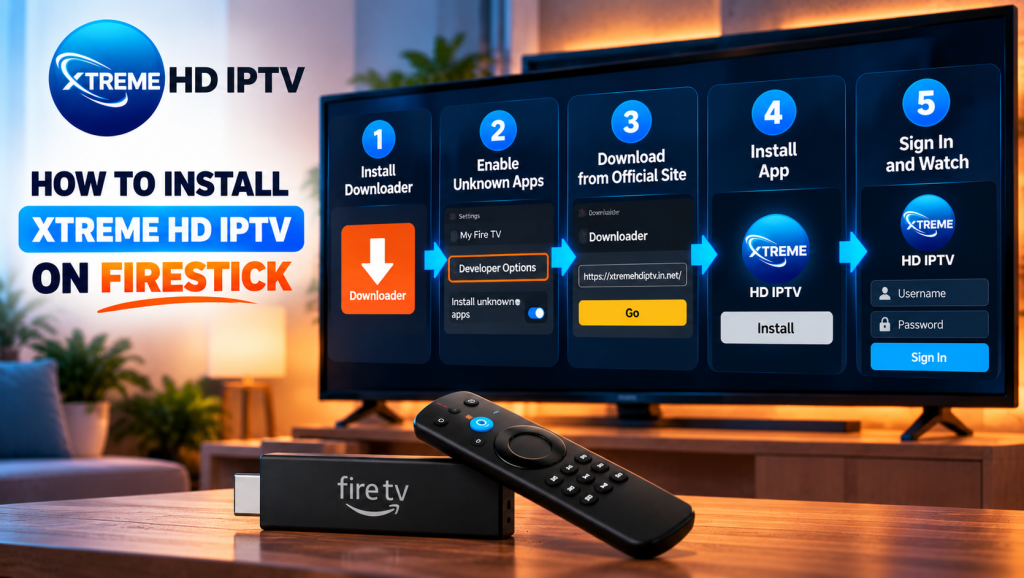
Step 1: Install the Downloader app.
From your Firestick home screen, open the search icon, type “Downloader” and install the app from the Amazon Appstore.
Step 2: Allow installs from unknown sources.
Go to Settings > My Fire TV > Developer Options and turn on installation from unknown apps for Downloader. On some Fire OS versions this appears as Install unknown apps.
Step 3: Download the app from the official site.
Open Downloader and enter the download link provided on the official Xtreme HD IPTV website: https://xtremehdiptv.in.net/. Always download from the official source, never from random third-party sites.
Step 4: Install the app.
When the download finishes, select Install, then Open once the installation is complete. You can delete the installer file afterwards to free up storage.
Step 5: Sign in.
Enter your login details or playlist information, wait for the channels to load, and you are ready to watch.
Setting up for the best picture and sound
- Use a wired Ethernet adapter if your Wi-Fi signal is weak. It often fixes buffering instantly.
- Place your Firestick away from thick walls and other electronics.
- Set your video output to match your TV (1080p or 4K) in Settings > Display & Sounds.
- Close other apps running in the background to free up memory.
What you can watch
The channel line-up depends on your plan, but most viewers look for the following categories:
- Live sports: football, Premier League and EPL matches, cricket, UFC and more
- Movies and series: on-demand libraries and live movie channels
- News: international and regional news networks
- Kids: cartoons and family programming
- International channels: content from the UK, US, Europe, Asia and the Middle East
You can see a full breakdown on our Xtreme HD IPTV channel list.
Fixing common problems on Firestick
Buffering or freezing: Restart your router and Firestick, clear the app cache in Settings > Applications > Manage Installed Applications, and test your speed. If it still happens, try a wired connection.
The app won’t open: Uninstall and reinstall the latest version from the official site.
Channels not loading: Check that your login is correct and that your subscription is active. Then refresh the channel list inside the app.
No sound or out-of-sync audio: Change the audio output in your Firestick settings, or try a different player inside the app.
Tips for watching live sports
- Open the app 10 to 15 minutes before kick-off so you can pick a stable stream.
- Keep a second stream or channel in mind in case one gets busy.
- Pause other downloads on your network during matches.
Final thoughts
Setting up Xtreme HD IPTV on a Firestick takes just a few minutes, and with a good connection it gives you a flexible way to watch live TV. Ready to get started? Visit Xtreme HD IPTV to see the current plans and download links.
Frequently asked questions about Xtreme HD IPTV on Firestick
Is Amazon Fire Stick blocking IPTV?
Amazon does not block IPTV technology as a whole, and IPTV apps can be installed on Fire OS. However, Amazon restricts some apps in its own store and may remove apps that breach its policies, which is why most IPTV apps are installed through Downloader. Keep Fire OS updated, use apps from trusted sources, and make sure your service is authorized to distribute its content.
Do I need a VPN?
A VPN is optional. Some people use one for privacy, though it can reduce speed.
How many devices can I use?
That depends on your plan, so check your subscription details.
How much does Xtreme HD IPTV cost?
Prices vary by plan, duration and number of connections. Visit https://xtremehdiptv.in.net/ for current options.
Is Xtreme HD IPTV legal?
IPTV technology is legal in many countries, but a service’s legality depends on its content rights and local laws. Verify that your provider is authorized to distribute the channels and content it offers.

In the digital age, the way we consume television and media has undergone a significant transformation, and Internet Protocol Television Read more

The landscape of the streaming industry has changed dramatically in recent years, with several players vying for dominance. Typhoon IPTV Read more

How to jailbreak a Chromebook? Chromebooks have gained popularity as lightweight, efficient, and affordable devices that provide seamless integration with Read more

Kemo IPTV is a popular IPTV service provider that delivers television programs and other video content to your device. The Read more