
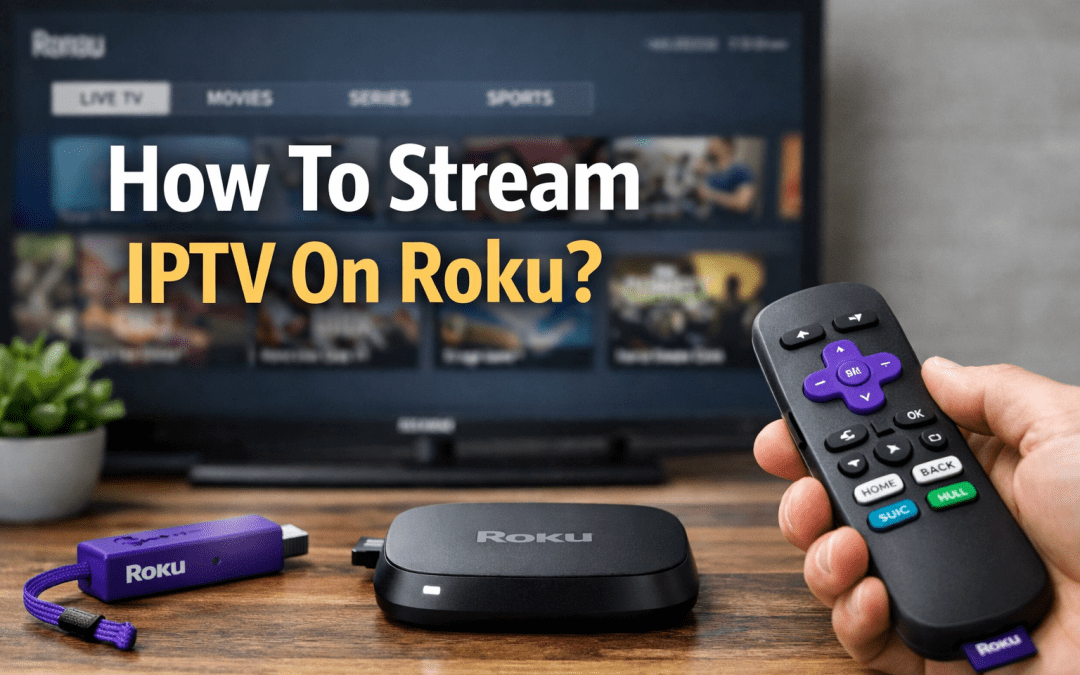
Understanding IPTV and Roku Compatibility
Internet Protocol Television has revolutionized how people consume media content across the globe. Unlike traditional cable or satellite services, this streaming method delivers television programming through internet connections, offering flexibility and often more affordable options for viewers. When combined with Roku’s popular streaming platform, users gain access to a versatile entertainment system.
Roku devices have become household names in streaming technology, powering millions of televisions worldwide. These compact devices transform any standard TV into a smart entertainment hub. However, many users wonder about the compatibility between IPTV for Roku and whether streaming through this method is straightforward.
The relationship between these two technologies isn’t as seamless as some might expect. Roku maintains a curated app store called the Roku Channel Store, which prioritizes officially licensed content providers. This approach means that typical IPTV on Roku solutions require creative workarounds rather than direct app installations.
Understanding this compatibility challenge is the first step toward successfully streaming your preferred content. While Roku doesn’t natively support many third-party streaming applications, several methods allow users to access their subscriptions through alternative routes.
What Makes Roku Different from Other Streaming Devices
Roku’s closed ecosystem sets it apart from competitors like Amazon Fire TV or Android-based streaming boxes. The company maintains strict control over which applications appear in their official store, focusing on licensed and verified content providers. This curation process ensures quality and legality but limits flexibility for users seeking alternative streaming options.
The Roku operating system doesn’t support sideloading applications like Android devices do. Users cannot simply download an APK file and install it manually. This restriction protects users from potentially harmful software but also prevents direct installation of many IPTV player for Roku applications that exist for other platforms.
Despite these limitations, Roku devices offer exceptional performance, user-friendly interfaces, and competitive pricing. The platform supports 4K streaming, HDR content, and maintains excellent app stability. These advantages make finding workarounds worthwhile for users committed to the Roku ecosystem.
Evaluating Your IPTV Service Requirements
Before attempting to set up IPTV Roku streaming, assess your specific service requirements. Different providers offer varying levels of compatibility with streaming devices, and understanding these differences helps avoid frustration during setup.
First, verify that your subscription includes web-based access or supports universal streaming protocols. Some services provide dedicated apps only for specific platforms, which could complicate Roku usage. Contact your provider to confirm their supported streaming methods and device compatibility.
Consider the type of content you prioritize. Live television streaming requires different technical specifications than on-demand libraries. Sports enthusiasts need low-latency connections to enjoy real-time events without delays. Movie watchers might prioritize video quality over stream delay considerations.
Network infrastructure plays a crucial role in streaming success. Internet Protocol Television demands stable, high-speed connections to deliver quality video without buffering. Most providers recommend minimum speeds of 10 Mbps for standard definition, 25 Mbps for high definition, and 50 Mbps for 4K content.
Method 1: Screen Mirroring from Mobile Devices
Screen mirroring represents the most accessible approach for streaming IPTV on Roku without additional hardware. This method broadcasts your smartphone or tablet screen directly to your Roku device, allowing any content playing on your mobile device to appear on your television.
Setting Up Screen Mirroring on Android Devices
Android users benefit from built-in screen mirroring capabilities that work seamlessly with Roku devices. Begin by ensuring both your Android device and Roku connect to the same wireless network. Network consistency is essential for maintaining stable mirroring connections.
Navigate to your Roku settings menu and select “System,” followed by “Screen mirroring.” Choose the “Screen mirroring mode” option and set it to either “Prompt” or “Always allow.” The prompt option provides security by asking permission each time a device attempts to connect, while always allow streamlines the process for trusted devices.
On your Android device, access the quick settings panel by swiping down from the top of your screen. Look for options labeled “Cast,” “Smart View,” or “Screen Mirroring” depending on your device manufacturer. Samsung devices call this feature Smart View, while other brands might use different terminology.
Select your Roku device from the available options. A connection request may appear on your television screen if you chose the prompt setting. Accept this request to establish the mirroring connection. Your Android screen should now display on your television.
Open your preferred streaming application on your Android device. The video player should appear on both your phone and television screen. Some applications detect the mirroring connection and optimize their display for larger screens automatically.
Implementing Screen Mirroring on iOS Devices
Apple device users access screen mirroring through AirPlay, though Roku doesn’t support native AirPlay functionality. This limitation requires installing the Roku mobile app, which provides AirPlay-like functionality specifically designed for iOS users.
Download the official Roku mobile app from the Apple App Store. This free application serves multiple purposes beyond screen mirroring, including functioning as a remote control and providing private listening through headphones connected to your phone.
Ensure your iPhone or iPad connects to the same WiFi network as your Roku device. Open the Roku mobile app and allow it to detect your streaming device. The app should automatically identify Roku players on your network.
Within the Roku app, locate the “Media” option at the bottom of the screen. This section allows you to play photos, videos, and music from your phone on your television. While this doesn’t provide true screen mirroring, it enables content streaming from iOS devices.
For actual screen mirroring functionality, access your iPhone’s Control Center by swiping down from the top-right corner on newer models or up from the bottom on older devices. Tap “Screen Mirroring” and select your Roku device if it appears. Note that true iOS screen mirroring requires specific Roku models that support this feature.
Optimizing Screen Mirroring Performance
Screen mirroring quality depends heavily on wireless network performance. Position your router centrally between your Roku device and mobile phone to minimize interference and maximize signal strength. Walls, appliances, and other electronic devices can degrade WiFi signals.
Close unnecessary applications running in the background of your mobile device. These programs consume processing power and network bandwidth, potentially causing stuttering or lag during mirroring sessions. Streaming video already demands significant resources from your phone.
Consider your mobile device’s battery life when using extended screen mirroring sessions. This process drains batteries quickly since your phone simultaneously runs the streaming app, maintains the wireless connection, and powers the screen. Keep your device charged or connected to power during longer viewing sessions.
Adjust video quality settings within your streaming application if you experience buffering or lag. Lowering resolution from 1080p to 720p reduces data transfer requirements and can improve streaming stability on slower networks.
Method 2: Using Third-Party Roku Channels
Roku’s Channel Store includes some lesser-known applications that support various streaming protocols. While these aren’t specifically designed as IPTV players for Roku, they can sometimes accommodate compatible streams through creative configuration.
Exploring M3U Playlist Compatible Channels
M3U playlists represent a universal format for organizing streaming links. Some Roku channels accept these playlist files, allowing users to create custom channel lineups. This approach requires technical knowledge but offers flexibility for streaming various content sources.
Search the Roku Channel Store for media players that advertise M3U support. These applications typically market themselves as universal media players or streaming utilities. Read user reviews carefully to verify current functionality, as channels sometimes lose features through updates.
After installing a compatible channel, you’ll need to provide your M3U playlist URL. Your streaming provider should supply this link, which contains addresses for all available channels. Some services generate unique URLs for each subscriber, ensuring proper access control.
Enter the playlist URL into the channel’s configuration settings. The exact process varies by application, but most provide straightforward setup wizards guiding users through initial configuration. Save your settings and allow the channel to load your playlist information.
Navigation through these third-party channels often differs from mainstream Roku apps. Interfaces may appear less polished or intuitive than official applications. Patience and experimentation help users become familiar with each channel’s unique layout and features.
Understanding IPTV Player Limitations
Third-party channels supporting streaming protocols face ongoing challenges on the Roku platform. The company regularly reviews all available channels, removing those that violate terms of service or fail to meet quality standards. Applications that work today might disappear tomorrow without warning.
Playback quality through third-party channels varies considerably. Some applications struggle with high-definition streams, leading to buffering or reduced resolution. Technical limitations within these channels prevent them from matching the performance of purpose-built streaming apps on other platforms.
User interfaces in alternative channels rarely match the polish of official Roku applications. Expect less intuitive navigation, fewer customization options, and potentially confusing menu structures. These trade-offs represent the cost of accessing content through workaround methods.
Updates to Roku’s operating system sometimes break compatibility with third-party channels. Developers of these applications may lack resources to quickly address compatibility issues, leaving users without streaming access until fixes arrive.
Method 3: Casting Through Web Browsers
Web browser casting provides another avenue for accessing IPTV Roku content without dedicated applications. This method leverages the Roku’s built-in web video casting capabilities, allowing streams from compatible websites to play directly on your television.
Setting Up Browser-Based Casting
Certain streaming providers offer web-based players accessible through standard internet browsers. These platforms sometimes include casting buttons that send video streams directly to Roku devices, bypassing the need for dedicated apps.
Access your provider’s website on a computer or laptop connected to the same network as your Roku device. Log into your account and navigate to their web player interface. Look for live channels or on-demand content you wish to watch.
Check for casting icons within the video player interface. These typically appear as rectangles with WiFi symbols in the corner of the player controls. The icon design follows standardized casting symbols used across multiple platforms.
Click the casting icon and select your Roku device from the available options. Your television should display a connection confirmation, and the video stream should begin playing. Your computer remains connected but doesn’t necessarily need to display the video during playback.
Control playback through the web interface on your computer. Play, pause, volume, and other standard controls remain available through the browser player. Some implementations allow you to browse other content while casting continues uninterrupted.
Browser Casting Troubleshooting
Browser casting occasionally fails to detect available Roku devices despite proper network connections. Refresh the webpage and verify that your Roku displays as online in your network settings. Router configurations sometimes block device discovery necessary for casting functionality.
Firewall settings on your computer might prevent casting connections. Temporarily disable firewalls or create exceptions for your browser and the casting process. Security software sometimes interprets casting traffic as suspicious activity worthy of blocking.
Browser extensions occasionally interfere with casting capabilities. Ad blockers and privacy extensions particularly cause conflicts. Disable these extensions temporarily to determine whether they prevent successful casting connections.
Video codec compatibility affects which streams successfully cast to Roku devices. Some web players use formats that Roku doesn’t support natively, resulting in audio-only playback or complete failure. Provider support teams can clarify which formats their web players utilize.
Method 4: Leveraging Streaming Set-Top Boxes
For users seeking the most reliable IPTV for Roku experience, combining Roku with a secondary streaming device offers advantages worth considering. This approach maintains Roku for mainstream services while dedicating another device specifically to alternative streaming needs.
Integrating Multiple Streaming Devices
Modern televisions include multiple HDMI ports, allowing simultaneous connection of several streaming devices. Connect your Roku to one input and an Android-based streaming box to another. This configuration provides the best features of both ecosystems.
Android streaming boxes support direct installation of various streaming applications unavailable on Roku. These devices offer greater flexibility for sideloading apps and accessing diverse content sources. Combined with Roku’s curated experience, users gain comprehensive streaming coverage.
Switch between inputs using your television remote to access different streaming platforms. Keep Roku as your primary device for mainstream services like Netflix, Disney+, and Hulu. Use the Android box specifically for alternative streaming applications.
This dual-device approach costs more initially but eliminates frustrating workarounds and compatibility issues. Investment in a quality Android streaming box provides long-term flexibility as streaming landscapes evolve.
Choosing Compatible Secondary Devices
Select Android streaming devices with adequate processing power for high-quality video playback. Budget options might struggle with 4K content or experience stuttering during high-bitrate streams. Research reviews focusing on video playback performance before purchasing.
Consider devices running modern Android TV operating systems rather than older Android versions. Android TV provides interfaces optimized for television screens and remote control navigation. Standard Android interfaces designed for touchscreens become cumbersome when controlled by directional buttons.
Verify that your chosen device supports the video codecs and resolutions your streaming service provides. Hardware decoding capabilities ensure smooth playback without taxing the processor. Software decoding works but consumes more resources and generates more heat.
Storage capacity matters when installing multiple applications and caching content. Select devices with at least 8GB of internal storage, though 16GB or more future-proofs your purchase. Expandable storage through microSD slots adds flexibility.
Method 5: Using IPTV Smarters Compatible Services
Some streaming providers optimize their services for popular applications like IPTV Smarters, which isn’t directly available on Roku. However, understanding this application’s functionality helps identify Roku-compatible alternatives that provide similar features.
Understanding Smarters Protocol Compatibility
Applications like IPTV Smarters use standardized streaming protocols that some Roku channels can interpret. Your streaming provider supplies connection details including server URLs, usernames, and passwords that these applications need for authentication.
Document all connection information your provider supplies, including API endpoints, authentication credentials, and playlist URLs. This information proves valuable when configuring various applications, even those not specifically designed as IPTV players for Roku.
Search the Roku Channel Store for universal media players that accept manual configuration of streaming sources. These applications might not mention specific compatibility but can sometimes process the same streams that dedicated apps handle on other platforms.
Contact your streaming provider’s support team to inquire about Roku compatibility. Some services maintain private or beta channels specifically for Roku users that aren’t visible in public store searches. Providers can supply channel codes for direct installation of these hidden applications.
Configuring Alternative Player Applications
Installation of alternative Roku channels sometimes requires channel access codes rather than standard store searches. These alphanumeric codes directly install channels without browsing the public store. Your provider can supply these codes if they maintain Roku-compatible options.
Enter channel codes through the Roku website rather than the device itself. Navigate to https://my.roku.com and log into your account. Select “Add a channel with a code” and input the provided sequence. The channel installs automatically on your linked devices.
After installation, launch the newly added channel and locate its settings or configuration menu. Enter your streaming service credentials exactly as provided by your supplier. Typos in usernames, passwords, or URLs prevent successful authentication.
Test various channels in your lineup to verify successful configuration. Some streams might work while others fail due to codec incompatibilities or server-side restrictions. Document which channels function properly to avoid repeatedly testing the same content.
Optimizing Network Configuration for Streaming
Regardless of which method you choose for IPTV on Roku, network performance fundamentally determines your viewing experience. Proper router configuration and network optimization prevent common streaming issues.
Router Settings That Impact Streaming Quality
Quality of Service (QoS) settings prioritize certain types of network traffic over others. Configure QoS to prioritize video streaming traffic, ensuring your entertainment streams receive adequate bandwidth even when other devices use the network simultaneously.
Access your router’s administrative interface by typing its IP address into a web browser. Common addresses include 192.168.1.1 or 192.168.0.1, though your specific model might differ. Consult your router’s documentation for exact access instructions.
Locate QoS settings within your router’s advanced configuration menus. Different manufacturers place these options in various locations, sometimes under traffic management, quality of service, or bandwidth allocation sections.
Create rules that prioritize your Roku device’s MAC address or assign high priority to video streaming ports. Typical streaming uses ports 80 and 443 for HTTPS traffic, though specific services might employ additional ports.
WiFi Optimization Strategies
Wireless interference degrades streaming performance more than most users realize. Neighboring networks, microwave ovens, baby monitors, and cordless phones all emit signals on similar frequencies, causing conflicts and reducing available bandwidth.
Analyze your wireless environment using smartphone apps that visualize nearby networks and signal strengths. These tools identify crowded channels and help you select less congested frequencies for your network.
Modern routers support both 2.4GHz and 5GHz frequency bands. The 2.4GHz band travels farther but faces more interference from common household devices. The 5GHz band provides faster speeds with less interference but doesn’t penetrate walls as effectively.
Connect your Roku to the 5GHz band if possible, especially if it’s located relatively close to your router. This configuration minimizes interference and provides maximum available bandwidth for high-quality streaming.
Position your router in a central, elevated location away from walls and metal objects. Signal strength decreases with distance and physical obstructions. Even moving a router a few feet can significantly improve performance in certain areas.
Wired Connection Benefits
Ethernet connections eliminate wireless interference entirely, providing the most stable streaming experience possible. Modern Roku devices include ethernet ports, though some budget models omit this feature.
Connect an ethernet cable directly from your router to your Roku device if both devices’ locations permit. This physical connection guarantees consistent bandwidth and eliminates WiFi-related troubleshooting.
Powerline adapters offer wired connection benefits when running ethernet cables proves impractical. These devices transmit network data through your home’s electrical wiring, creating wired connections without drilling holes or running visible cables.
Install one powerline adapter near your router, connected via ethernet. Plug a second adapter near your Roku device and connect it via ethernet. Data travels through your electrical system, providing near-wired performance without extensive cable management.
Troubleshooting Common Streaming Issues
Even properly configured IPTV Roku setups occasionally experience problems. Understanding common issues and their solutions helps maintain consistent streaming access.
Addressing Buffering and Playback Interruptions
Buffering occurs when your device downloads content slower than it plays, forcing temporary pauses while more data loads. This frustrating issue stems from insufficient bandwidth, network congestion, or server-side problems.
Run internet speed tests during typical usage times to verify your connection meets streaming requirements. Services like Speedtest.net provide free, accurate measurements of your download speeds, upload speeds, and network latency.
Compare test results against your streaming provider’s recommended speeds. Consistently low results indicate issues with your internet service plan or infrastructure problems requiring your ISP’s attention.
Close other applications and devices using your network during critical streaming sessions. Software updates, cloud backups, and other automatic processes consume bandwidth without obvious indicators. Temporarily disconnecting unnecessary devices ensures maximum available bandwidth for streaming.
Restart both your Roku device and router to clear temporary glitches and refresh connections. Unplug both devices from power for 30 seconds before reconnecting. This simple step resolves surprising numbers of intermittent issues.
Resolving Authentication and Login Problems
Authentication failures prevent access to streaming content despite correct credentials. These issues often result from server-side problems, expired subscriptions, or IP address restrictions.
Verify your subscription remains active by logging into your provider’s website from a computer. Account status pages indicate expiration dates, payment problems, or administrative holds affecting service access.
Some streaming services restrict simultaneous streams or limit access to specific geographic regions. Confirm you’re not exceeding your plan’s device limits and that your location doesn’t trigger geographic restrictions.
Check for typos in entered credentials, particularly when using on-screen keyboards with remote controls. Re-enter usernames and passwords carefully, double-checking capitalization and special characters.
Contact your provider’s support team if authentication problems persist despite correct credentials and active subscriptions. Server-side issues occasionally affect user authentication systems, requiring provider intervention to resolve.
Fixing Audio and Video Sync Issues
Audio playing ahead of or behind video severely diminishes viewing experiences. Sync issues stem from processing delays, codec problems, or system resource constraints.
Roku devices include audio delay adjustment features buried in advanced settings menus. Navigate to Settings, then Audio, and locate audio delay or lip sync options. Experiment with small adjustments until audio and video align properly.
Some third-party streaming channels lack proper audio sync controls, making correction impossible within the application. Try alternative channels or streaming methods if sync problems prove insurmountable.
System resource exhaustion occasionally causes sync drift during extended viewing sessions. Restart your Roku device periodically to refresh system memory and clear accumulated processes that might affect playback synchronization.
Legal Considerations and Best Practices
Understanding the legal landscape surrounding streaming technology helps users make informed decisions about their entertainment choices. While technology itself remains legal, how users employ it raises various considerations.
Distinguishing Licensed from Unlicensed Content
Licensed content providers maintain legal agreements with content creators and rights holders. These services pay fees for distribution rights, ensuring creators receive compensation for their work. Mainstream platforms like Netflix, Hulu, and HBO Max operate under comprehensive licensing agreements.
Unlicensed services distribute content without proper authorization from rights holders. These operations violate copyright laws in most jurisdictions, regardless of whether users pay subscription fees. The legality of services depends on their licensing status, not their business model.
Research providers thoroughly before subscribing to any service. Legitimate companies openly display information about their licensing agreements and corporate structures. They maintain physical addresses, published contact information, and transparent business practices.
Warning signs of unlicensed services include unrealistically low prices for extensive content libraries, lack of company information, anonymous payment methods, and claims of content from sources that don’t offer such distribution rights.
Understanding User Legal Responsibilities
Users bear responsibility for ensuring their streaming activities comply with local laws. Ignorance of a service’s legal status doesn’t provide protection if authorities investigate copyright violations in your jurisdiction.
Copyright laws vary significantly between countries, with some regions enforcing them strictly while others take more relaxed approaches. Research your specific location’s regulations regarding streaming content and intellectual property rights.
Many countries consider accessing copyrighted content without authorization illegal regardless of whether users personally upload or distribute material. Simply viewing unlicensed streams might constitute copyright infringement in certain jurisdictions.
Internet service providers in some regions monitor subscriber traffic and report suspected copyright violations to authorities. VPN services can obscure streaming activities from ISP surveillance, though using VPNs to access unlicensed content doesn’t make such access legal.
Protecting Personal Information
Subscription to any streaming service requires sharing personal and financial information. Legitimate providers implement security measures protecting customer data, while questionable services might mishandle or deliberately misuse subscriber information.
Use payment methods offering fraud protection when subscribing to streaming services. Credit cards typically provide better dispute resolution and fraud protection than debit cards or direct bank transfers. Virtual credit card numbers add additional security layers.
Research privacy policies before providing personal information to streaming providers. Legitimate services clearly explain data collection, storage, and usage practices. Vague or missing privacy policies indicate potentially untrustworthy operations.
Enable two-factor authentication on streaming accounts whenever available. This additional security layer prevents unauthorized access even if someone obtains your password through data breaches or phishing attempts.
Comparing Alternative Roku Streaming Methods
Each approach to streaming IPTV for Roku offers distinct advantages and disadvantages. Understanding these trade-offs helps users select methods matching their technical skills, budget constraints, and performance expectations.
Screen Mirroring Evaluation
Screen mirroring provides the simplest implementation for users already owning compatible smartphones or tablets. This method requires no additional purchases and works with virtually any streaming application available on mobile platforms.
However, screen mirroring drains mobile device batteries rapidly and ties up your phone during viewing sessions. You cannot use your device for other purposes without interrupting the stream or leaving your mirroring session active while using other apps awkwardly.
Picture quality through screen mirroring depends heavily on wireless network performance and device capabilities. Compression inherent in the mirroring process can reduce quality compared to direct streaming applications.
This approach works best for occasional viewing sessions or testing services before committing to more permanent solutions. Daily users find screen mirroring’s limitations frustrating for regular entertainment consumption.
Third-Party Channel Assessment
Using third-party Roku channels provides the most integrated experience when working solutions exist. Content plays directly on your Roku without requiring additional devices or connections. This seamless integration matches the experience of official streaming apps.
Unfortunately, third-party channels face ongoing availability and reliability challenges. Channels frequently disappear from the Roku store without warning, leaving users scrambling for alternatives. Updates to Roku’s operating system can break previously functional channels.
Interface quality varies tremendously between third-party applications. Some provide polished, intuitive designs while others offer barely functional menus and confusing navigation. Users must tolerate interface limitations in exchange for accessing desired content.
Technical support for third-party channels typically falls short of expectations. Small development teams or individual creators maintain many alternative channels, lacking resources for comprehensive user support or rapid bug fixes.
Multi-Device Configuration Analysis
Combining Roku with secondary streaming devices delivers the most reliable results for users seeking comprehensive entertainment options. This approach provides official Roku experiences for mainstream services while offering unrestricted access to alternative platforms through Android or other devices.
Initial costs for multi-device setups exceed single-device approaches, but long-term reliability and flexibility justify investments for serious streaming enthusiasts. Eliminating workarounds and compatibility issues provides tangible value through saved time and reduced frustration.
Managing multiple remotes presents minor inconveniences that universal remotes or smartphone apps can mitigate. Modern universal remotes support multiple devices, allowing control of your entire entertainment system through a single interface.
This solution works exceptionally well for users prioritizing both convenience and access to diverse content sources. The combination delivers professional-grade flexibility typically found in enthusiast home theater configurations.
Advanced Configuration for Power Users
Users comfortable with networking concepts and technical configuration can implement advanced strategies improving their IPTV on Roku streaming experiences beyond basic methods.
VPN Integration for Enhanced Privacy
Virtual Private Networks encrypt internet traffic and mask your true IP address, providing privacy and potentially circumventing geographic restrictions. While Roku devices don’t natively support VPN applications, router-level VPN configuration protects all connected devices.
Configure VPN services on compatible routers to encrypt traffic from all network devices including Roku players. This router-level implementation requires no configuration on individual streaming devices, making it transparent to users after initial setup.
Research router VPN compatibility before purchasing VPN services. Some routers support VPN connections natively while others require custom firmware installations like DD-WRT or Tomato. Firmware modifications can void warranties and potentially damage routers if performed incorrectly.
VPN connections typically reduce overall internet speeds due to encryption overhead and routing traffic through VPN servers. Select VPN providers with servers geographically close to your location to minimize speed impacts. Premium services generally offer better performance than free alternatives.
Test streaming performance with and without VPN connections to determine acceptable trade-offs. Some users prioritize privacy despite speed reductions while others disable VPNs for streaming to maximize performance.
Custom DNS Configuration
Domain Name System servers translate human-readable website addresses into numerical IP addresses computers use for communication. Custom DNS servers sometimes provide faster response times or access to geo-restricted content compared to ISP-provided defaults.
Configure custom DNS servers through your router’s administrative interface, affecting all network devices simultaneously. This approach avoids configuring DNS settings on individual devices, providing centralized management.
Popular alternative DNS providers include Cloudflare (1.1.1.1), Google (8.8.8.8), and OpenDNS (208.67.222.222). Each offers potential advantages regarding speed, privacy policies, and feature sets. Research various providers to identify options matching your priorities.
Some streaming services detect and block access through certain DNS providers, particularly those designed to circumvent geographic restrictions. Maintain multiple DNS configurations to switch between if one stops working with specific services.
Document your original ISP-provided DNS settings before changing them. This information allows reverting to defaults if custom DNS creates unexpected problems with streaming or other internet services.
Future of IPTV on Roku
The streaming landscape constantly evolves as technology advances and market dynamics shift. Understanding potential future developments helps users make informed decisions about platform investments.
Roku’s Evolving Content Policies
Roku periodically adjusts its channel store policies in response to content provider concerns, legal pressures, and competitive dynamics. These policy changes sometimes expand or restrict the types of applications available on the platform.
The company recently opened their platform somewhat by allowing more private channels accessible through special codes. This policy shift provides flexibility for niche services while maintaining curation standards for public channel store listings.
However, Roku simultaneously increased scrutiny of existing channels, removing applications that violate terms of service or fail to meet technical standards. This quality control benefits users by eliminating buggy or malicious applications but occasionally affects legitimate services caught by automated enforcement systems.
Monitor Roku’s official blog and support forums for announcements regarding policy changes affecting channel availability. Staying informed helps anticipate potential disruptions to your streaming configuration.
Emerging Streaming Technologies
Next-generation streaming protocols promise improved quality, reduced latency, and better compatibility across diverse devices. Technologies like AV1 codec provide superior compression compared to current standards, delivering higher quality video at lower bitrates.
Roku gradually implements support for emerging standards through firmware updates. Older devices might not receive updates enabling new features, encouraging upgrades to current-generation hardware for accessing latest capabilities.
5G cellular networks enable streaming high-quality video content without traditional home internet connections. This technology could reshape how users access streaming content, potentially making device compatibility issues less relevant as services move toward universal web-based platforms.
Edge computing brings content delivery servers closer to end users, reducing latency and improving streaming reliability. This infrastructure improvement benefits all streaming methods including IPTV Roku configurations by providing faster, more consistent content delivery.
Making Informed Decisions About Streaming Solutions
Choosing appropriate streaming methods requires balancing multiple factors including technical capabilities, budget constraints, content priorities, and tolerance for setup complexity.
Assessing Your Technical Comfort Level
Honestly evaluate your comfort with technology when selecting streaming solutions. Some methods require extensive configuration, troubleshooting skills, and ongoing maintenance. Users uncomfortable with technical challenges face frustration with complex implementations.
Screen mirroring offers the lowest technical barrier for users already owning smartphones. This approach requires minimal setup knowledge and few new concepts to learn. Most users successfully establish mirroring connections following basic instructions.
Third-party Roku channels demand moderate technical skills, particularly when entering configuration URLs and troubleshooting connection issues. Users must understand concepts like M3U playlists and authentication credentials to successfully configure these applications.
Multi-device setups require the most technical knowledge, involving network configuration, device management, and troubleshooting skills across multiple platforms. This approach suits users comfortable with home networking concepts and technology troubleshooting.
Budget Considerations
Financial investment varies significantly between different IPTV for Roku approaches. Screen mirroring requires no additional spending beyond existing devices and streaming subscriptions. This cost-free method appeals to budget-conscious users willing to accept its limitations.
Third-party channel solutions maintain minimal costs, requiring only active Roku devices and streaming subscriptions. Some alternative channels might request donations or offer paid versions with enhanced features, though many remain completely free.
Multi-device configurations require purchasing additional streaming hardware, typically ranging from fifty to two hundred dollars depending on device capabilities and features. This upfront investment provides long-term benefits through improved reliability and expanded functionality.
Consider total cost of ownership including time spent configuring, troubleshooting, and maintaining different streaming solutions. Methods requiring extensive ongoing attention carry hidden costs in time and frustration beyond initial financial outlays.
Content Priority Analysis
Your viewing priorities significantly influence which streaming method best serves your needs. Users primarily consuming mainstream services find Roku’s native capabilities sufficient without workarounds. Those seeking broader content access from various sources need more flexible solutions.
Live sports enthusiasts require low-latency streams to enjoy real-time events without spoiler concerns. Some streaming methods introduce delays that frustrate sports viewers checking scores or discussing games on social media while watching.
Movie and television series viewers prioritize video quality over latency considerations. These users benefit from methods supporting high-bitrate streams and advanced video codecs delivering superior picture quality.
International content consumers might need solutions providing access to region-restricted services. Geographic restrictions affect different streaming methods variably, with some approaches better circumventing these limitations than others.
Conclusion
Streaming IPTV on Roku requires creative approaches due to platform limitations, but several viable methods exist for determined users. Screen mirroring offers simplicity for casual viewing, while third-party channels provide more integrated experiences when available. Advanced users might prefer combining Roku with secondary devices for comprehensive streaming capabilities.
Success depends on matching streaming methods to your specific requirements, technical capabilities, and content priorities. No single solution perfectly serves all users, making careful evaluation of available options essential before implementation.
Network infrastructure fundamentally impacts streaming quality regardless of chosen methods. Investing time in proper router configuration, WiFi optimization, and bandwidth management pays dividends through improved viewing experiences across all streaming activities.
The streaming landscape continues evolving rapidly, with new technologies and policy changes regularly affecting available options. Staying informed about platform developments helps users adapt configurations and maintain consistent access to preferred content sources.
Ultimately, finding the right IPTV player for Roku approach requires balancing convenience, cost, reliability, and content access. If you need assistance with IPTV setup, account activation, or troubleshooting, please visit our Contact Page.
Users willing to invest time researching and implementing appropriate solutions enjoy flexible, comprehensive streaming entertainment tailored to their specific preferences and viewing habits.

Have you ever used a Bitcoin so far? If not then don’t worry, we have a solution for you to Read more

Internet-based television has transformed how users access live channels, movies, and on-demand content. Among the many IPTV services available today, Read more

The Xtreme HD IPTV Channel list offers one of the most extensive collections of live TV channels, premium sports, movies, Read more

Staying current in the ever-evolving realm of television and entertainment is vital. Gone are the days when only limited options Read more