

Few things are more frustrating than a live match freezing at the decisive moment. If you use Xtreme HD IPTV and keep seeing the spinning wheel, the cause is usually one of three things: your network, your device, or the stream itself.
The mistake most people make is changing settings at random. This guide shows you how to find the real cause first, then fix it.
Why IPTV Buffers
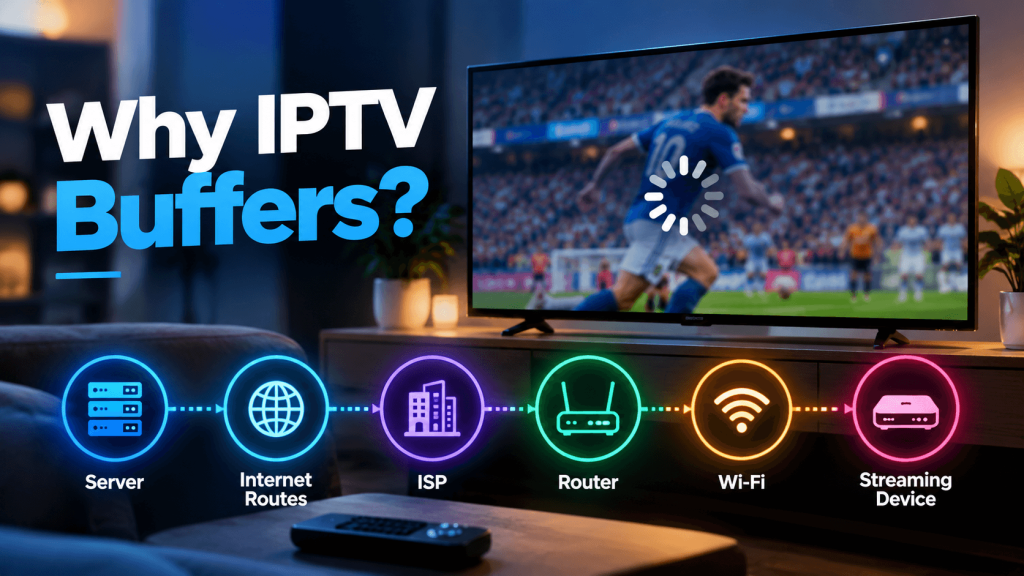
Buffering happens when your device can’t receive video data as fast as it plays it. The player keeps a small reserve of data, called the buffer. When that reserve runs out, playback pauses while it refills.
The delay can come from anywhere along the path: the server, the internet routes between you and it, your ISP, your router, your Wi-Fi, or your streaming device. Fixing the wrong link changes nothing, which is why diagnosis comes first.
Step 1: Find Out Where the Problem Is
Run these quick tests before touching any settings:
- Test another service. Play a YouTube video in the highest quality on the same device. If it also stutters, your network or device is the problem.
- Test another device. If a phone on the same Wi-Fi streams fine but your TV box doesn’t, suspect the device.
- Test other channels. If only one channel buffers, the issue is with that stream, not your setup.
- Test at a different time. If buffering only appears on weekend evenings or during big events, congestion is likely.
These results point you to the right step below.
Step 2: Check Your Internet Speed Properly
Run a speed test on the streaming device itself, not your phone. As a rough guide, SD needs about 5 Mbps, HD about 15 Mbps, and 4K about 25 Mbps per stream. If your plan allows several simultaneous devices, add them together and leave headroom for everyone else on your network.
Speed isn’t the only factor. Stability matters just as much. A fast connection with frequent packet loss will still buffer.
Step 3: Switch from Wi-Fi to Ethernet
This is the most effective fix for many households. Wi-Fi suffers from interference, walls, and distance, and streaming boxes often have weak antennas. A wired connection removes all of that.
If a cable isn’t practical:
- Move to the 5 GHz band if your router supports it.
- Place the router in the open, away from microwaves and thick walls.
- Use a mesh system or powerline adapters for far-away rooms.
Step 4: Restart and Refresh Your Setup
It sounds basic, but it clears stuck connections and memory leaks:
- Unplug your router and streaming device for 30 seconds.
- Plug in the router first, then the device once the internet light is steady.
- Reopen the app and test again.
Step 5: Clear Cache and Update the App
Apps store temporary data that can slow them down over time. On most Android-based devices, go to Settings, then Apps, choose your IPTV app, and select Clear Cache. Avoid “Clear Data” unless you’re ready to log in again.
Also make sure the app and your device firmware are up to date. Updates often fix playback bugs and decoder problems.
Step 6: Adjust Player Settings
Many players include options that affect stability:
- Hardware decoding: Turn it on if your device supports it. It reduces load on the processor.
- Buffer size: Increasing it gives the player a bigger reserve against brief dips. The trade-off is a slightly longer delay on live streams.
- Lower the quality: If 4K stutters, drop to 1080p. A stable HD stream beats a broken 4K one.
Step 7: Check Your Device Hardware
Older or low-end streaming boxes can’t always decode high-bitrate video smoothly, and the result looks like a network problem. Signs include buffering at any hour, a hot device, and stutter even on fast Wi-Fi.
Close background apps, free up storage, and consider a newer streaming device if yours is several years old.
Step 8: Check Your ISP and Routing
Sometimes the problem sits between you and the server. Some ISPs manage traffic differently at peak hours. A VPN can occasionally help by changing the route your data takes, but a poorly chosen VPN adds delay and often makes buffering worse. If you try one, compare it against your normal connection and keep whichever performs better.
You can also change your router’s DNS to a public one such as Cloudflare (1.1.1.1) or Google (8.8.8.8). It’s free and takes two minutes.
Step 9: Contact Support
If you’ve worked through the steps above and only Xtreme HD IPTV buffers while everything else streams smoothly, the cause may be on the stream or server side, which you can’t fix yourself. At that point, contact support with details that help them investigate:
- Which channel or title buffered
- The date and time it happened
- Your device and app version
- Your speed test result
- Whether you used Wi-Fi or ethernet
The more specific you are, the faster the problem can be traced.
Quick Troubleshooting Checklist
- Test another app and another device to locate the problem
- Run a speed test on the streaming device itself
- Use ethernet instead of Wi-Fi if possible
- Restart your router and device
- Clear the app cache and update everything
- Turn on hardware decoding and adjust the buffer
- Lower stream quality to 1080p
- Try a public DNS
- If only one service fails, contact support with details
Final Thoughts
Most buffering is fixable once you identify where it starts. Work through the network, device, and settings steps in order and you’ll solve the majority of cases in under half an hour. If the problem remains, send support the details above so they can look into it.
FAQ’s
Roughly 15 Mbps for HD and 25 Mbps for 4K per stream, with extra headroom for other devices at home.
Sometimes, if your ISP routes traffic poorly. A weak VPN can make buffering worse, so test with and without it.
It can. Each simultaneous stream uses bandwidth, so a plan with several devices needs a faster connection.
Plan size doesn’t change stream quality. Choose it by the number of screens you use at once, then make sure your connection can support them.

In the digital age, the way we consume television and media has undergone a significant transformation, and Internet Protocol Television Read more

The landscape of the streaming industry has changed dramatically in recent years, with several players vying for dominance. Typhoon IPTV Read more

How to jailbreak a Chromebook? Chromebooks have gained popularity as lightweight, efficient, and affordable devices that provide seamless integration with Read more

Kemo IPTV is a popular IPTV service provider that delivers television programs and other video content to your device. The Read more