
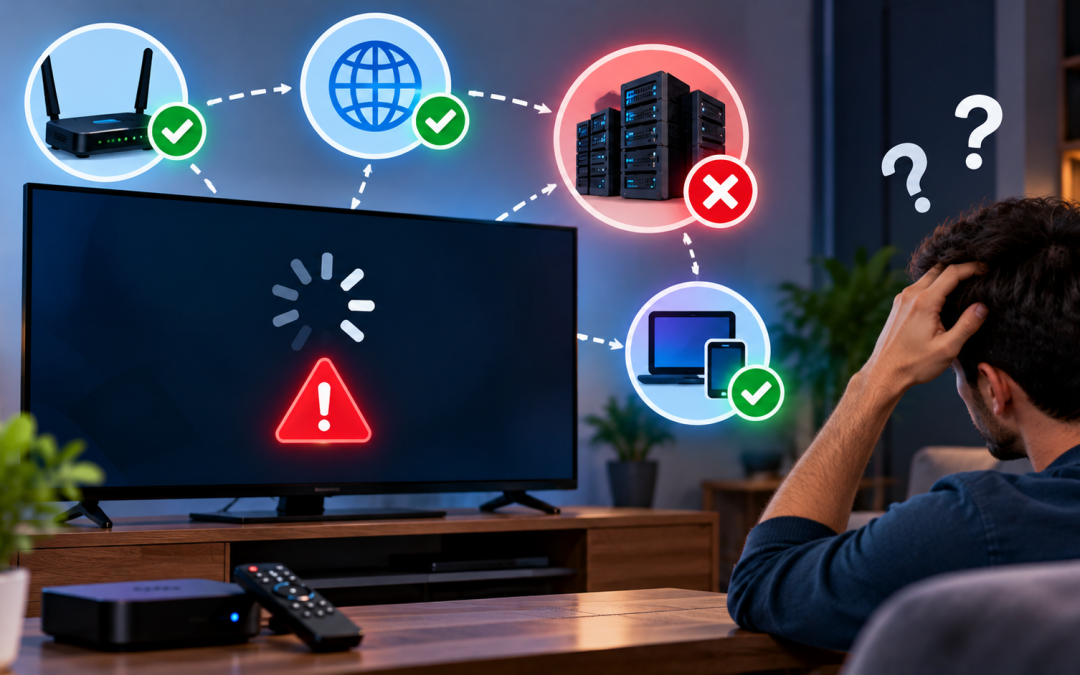
Quick answer: Before assuming the server is down, test your own setup. Open another app or website, try a second device and restart your router. If everything else works and only Xtreme HD IPTV fails on every device, the issue may be on the server side. In that case, check the official channels for an update and contact support with your details.
You open the app, press play and nothing happens. The screen stays black, the channel list won’t load, or the video freezes every few seconds. The first thought is usually the same: “Is Xtreme HD IPTV down?”
Sometimes the answer is yes. More often, the cause is something closer to home, such as a weak connection, an outdated app or a simple login error. This guide shows you how to tell the difference in a few minutes, what to try first, and how to get help quickly when the problem really is on the server side.
Is It You or the Server?
The fastest way to save time is to work out where the problem sits. There are three possibilities:
- Your device or app: an outdated app, a full cache or a wrong setting.
- Your internet connection: a slow connection, a router glitch or an ISP issue.
- The server: a temporary outage or maintenance on the provider’s side.
Start with the first two. They cause most “down” reports, and you can check them yourself in minutes.
Signs the Problem Is on Your Side
These clues usually point to your device or network:
- Other apps or websites also load slowly or fail.
- The problem happens on one device but not on another.
- The error appears only on Wi-Fi and disappears on mobile data.
- It started right after an app update, a router change or a new setting.
- Only certain channels fail while others play normally.
Signs the Problem May Be on the Server
These clues suggest a wider issue:
- Every channel fails, on every device you own.
- The app loads but shows a login error even though your details are correct.
- Several other users report the same problem at the same time.
- Your internet works perfectly for everything else.
- The problem appears suddenly, without any change on your side.
If most of these match, the server may be having a temporary problem. Even then, run the quick checks below first so you can rule out your own setup.
How to Check Xtreme HD IPTV Server Status
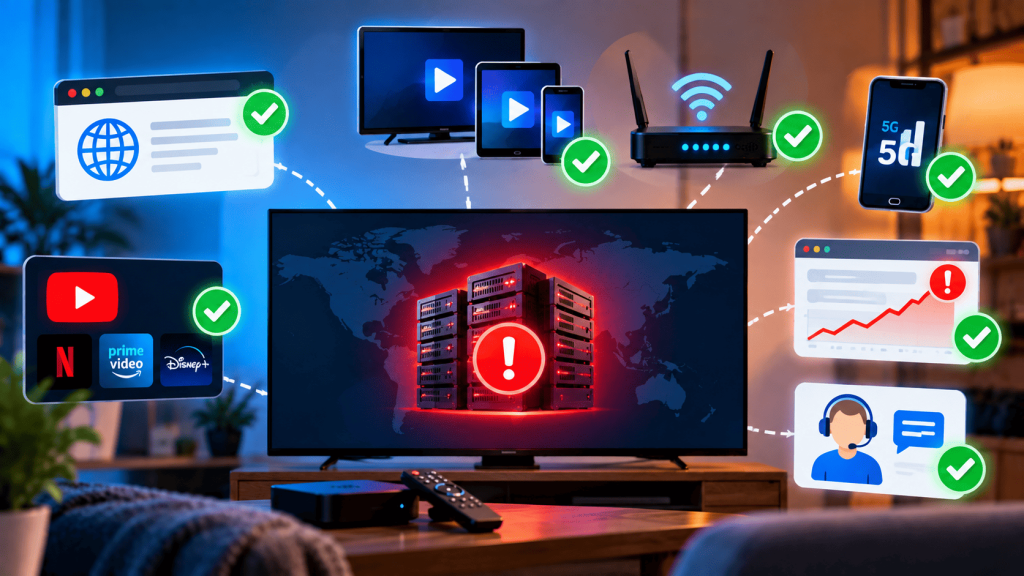
Here are the practical ways to check, from fastest to most thorough.
1. Check the official sources first. Visit the official website and look at the server page and the contact options.
2. Test with a second device. Try your phone, a tablet or another TV. If the same account works on one device but not another, the problem is with the device and not the server.
3. Switch networks. Connect your phone to mobile data instead of Wi-Fi and test again. If it works on mobile data, your home network or router is the likely cause.
4. Check other services. Open YouTube or another streaming app. If those also struggle, your connection is the problem.
5. Look at independent outage trackers. General outage-tracking websites collect user reports, which can show whether many people are having trouble at the same time. Treat them as a hint, not proof, since reports can be sparse or outdated.
6. Contact support. If you still cannot tell, the quickest answer comes from support. Details are in the contact section below.
Quick Fixes to Try Before You Contact Support
These steps solve a large share of “not working” problems. Try them in order.
1. Restart everything
Turn off your device, unplug the router for 30 seconds, plug it back in and wait for the connection to come back. This clears many temporary glitches.
2. Check your internet speed
A stable connection is the foundation of IPTV streaming. As a rough guide, HD streams need a steady connection of several megabits per second, and 4K needs considerably more. If your speed is low or unstable, move closer to the router or use a wired connection. Our IPTV bandwidth guide explains how much speed you need.
3. Check your login details
Make sure the server URL, username and password are entered exactly as provided, with no extra spaces. A single typo can look like an outage. Our Xtreme HD IPTV not working guide covers login errors in detail.
4. Check your subscription
An expired plan will stop playback and can show the same symptoms as a server problem. Confirm that your plan is active and that you have not reached the device limit.
5. Update or reinstall the app
Outdated versions can stop working properly. Update the app, or uninstall and reinstall it. If you need the correct file or steps, see the Xtreme HD IPTV APK download guide.
6. Clear the app cache
On Android and Firestick, open Settings, go to Apps, select the player, then clear cache. This removes old data that can cause freezing or loading errors. Clear data only if you have your login details saved elsewhere, since it may sign you out.
7. Turn off your VPN to test
A VPN can slow your connection or interfere with streaming. Disable it temporarily to see whether the problem disappears. If it does, adjust the VPN settings or try a different server location.
8. Try a different DNS
Sometimes your internet provider’s default DNS is slow or unreliable. Switching to a public DNS service on your router or device can help with loading errors. Change one setting at a time so you know what worked, and note your original settings so you can switch back.
9. Restart the stream at a different time
Heavy demand during live sports or big events can strain any streaming service. If the problem happens only at busy hours, try again a little later.
Common Error Messages and What They Usually Mean
| What you see | Likely cause | What to try |
| Black screen with sound | Player or decoder issue | Restart app, change player setting, update app |
| Channel list will not load | Connection, login or server issue | Check login, test another device, then contact support |
| Constant buffering | Slow connection or busy server | Test speed, use a wired connection, try another time |
| “Invalid login” or “failed” | Wrong details, expired plan or device limit | Re-enter details, check plan and device count |
| One channel not playing | Problem with that channel only | Try other channels, report the channel name to support |
| App crashes on open | Outdated app or full cache | Update, clear cache, reinstall |
For more on specific issues, see our guides on IPTV freezing issues and IPTV black screen issues.
When to Contact Support
Contact support if you have completed the quick fixes above and the problem continues, especially if it happens on every device. To get a faster answer, send the following in your first message:
- Your account details (username only, never your password)
- The device and app you are using, such as “Firestick 4K, version X”
- The exact error message or a screenshot
- When it started and whether it happens all the time or only at certain times
- What you have already tried, such as restarting, testing another device or changing networks
You can reach the team through the contact page or the support options listed on the official website.
Clear details help identify the cause quickly. A message like “it doesn’t work” takes much longer to solve than one that lists the device, the error and the steps you have taken.
How to Avoid Interruptions in the Future
You cannot prevent every outage, but you can reduce problems on your side.
- Use a wired connection where possible, or keep your device close to the router.
- Keep the app updated and avoid old or unofficial versions.
- Keep your account details safe in a note, so you can sign in again quickly.
- Check your plan dates so renewal never catches you by surprise.
- Avoid running several heavy downloads while streaming.
- Bookmark the official website and contact page, so you know where to check for updates.
Before You Rely on Any IPTV Service
A final point of caution applies to any IPTV service. Rules about IPTV differ between countries, so make sure you understand the licensing rules where you live and use only content you have the right to access. If a service becomes unavailable, it is also wise to keep your account details and plan information stored somewhere safe, so you can resolve problems quickly.
Final Thoughts
When you wonder “Is Xtreme HD IPTV down?”, start by finding out whether the problem is your device, your connection or the server. Test another device, switch networks, restart your equipment and check your login and plan. If everything on your side checks out and the problem continues on every device, contact support with clear details so they can help quickly.
Most issues turn out to be small and fixable in a few minutes. For more help, explore the other guides on the Xtreme HD IPTV blog.
FAQ’s
The quickest way to check is to test Xtreme HD IPTV on another device and network. If it fails everywhere while other apps work normally, the issue may be on the server side.
Common causes include a weak internet connection, incorrect login details, an expired subscription, an outdated app, or a temporary server issue.
Buffering can result from a slow or unstable internet connection, network congestion, device issues, or heavy demand on the service. Restarting your router and using a wired connection may help.
Check the provider’s official website and support channels, test the service on another device and network, and look at independent outage trackers for reports from other users.
Restart your device and router, check your internet speed, verify your login details and subscription, update or reinstall the app, and clear the app cache.
Check your account information or subscription confirmation for the plan dates. If you’re unsure, contact support to confirm your subscription status.
Yes. If restarting, updating the app, and clearing the cache don’t solve the problem, reinstalling the app can be a useful next step. Keep your login details available before reinstalling.
There is no fixed duration because outages can have different causes. Short interruptions may resolve quickly, while longer problems may require an update from support.

In the digital age, the way we consume television and media has undergone a significant transformation, and Internet Protocol Television Read more

The landscape of the streaming industry has changed dramatically in recent years, with several players vying for dominance. Typhoon IPTV Read more

How to jailbreak a Chromebook? Chromebooks have gained popularity as lightweight, efficient, and affordable devices that provide seamless integration with Read more

Kemo IPTV is a popular IPTV service provider that delivers television programs and other video content to your device. The Read more