
Into IPTV players for seamless, reliable streaming

Loading playlists into your IPTV player is the easiest way to unlock live TV channels and on‑demand libraries. This guide walks you through importing M3U and M3U8 playlists and direct web stream URLs across common players. Follow these steps for better playback, fewer hiccups, and quick access to the channels you want. We cover multiple import methods, compatibility tips, troubleshooting fixes, and recommended players.
Methods to Import Playlists
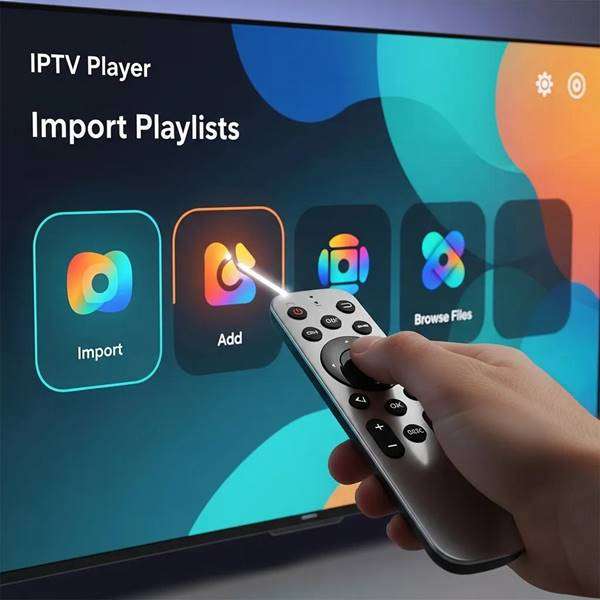
There are several ways to bring playlists into an IPTV app — pick the one that fits your setup. Below are the most common approaches and when to use them.
Using M3U URL:
To import an M3U URL into your IPTV player, follow these steps:
- Find a trusted IPTV source: Use a reputable provider or repository that supplies M3U links.
- Copy the raw M3U URL: Make sure you copy the full, unmodified link.
- Load the playlist in your player: Open your IPTV app, go to the playlist/import area, paste the URL, and save to start streaming.
This method is fast and keeps things cloud‑based—no local files required.
Using M3U File:
If you prefer to use an M3U file, the process is straightforward:
- Download the M3U file: Get the playlist file from a reliable source.
- Open the file in a text editor: Quickly scan the file to confirm formatting and links.
- Import into IPTV player: In the app, choose the file import option and select the downloaded M3U file.
Using a file is useful when you want to edit channel names, reorder entries, or keep an offline copy.
Using Xtream Codes API:
For users with Xtream Codes access, importing is even simpler:
- Select the Xtream Codes option: Choose the Xtream Codes/API option inside your IPTV app.
- Enter server URL and credentials: Input the provider’s server address along with your username and password to connect.
Xtream Codes offers an integrated experience with channel lists, EPG, and account authentication where supported.
Compatibility Considerations
Compatibility affects whether a playlist will play correctly. Keep these factors in mind:
- Confirm M3U / M3U8 support: Not every player supports both formats—check the app specs.
- Check supported streaming protocols: Some players don’t handle certain protocols or encrypted streams.
- EPG and metadata support: If you rely on program guides, choose a player that supports EPG import and channel mapping.
Verifying compatibility up front saves time and avoids playback surprises.
Troubleshooting Tips
Playlist imports occasionally fail. Here are quick fixes for common issues:
- Buffering issues: Test your internet speed, switch to a wired connection, or try a different server if available.
- Playlist errors: Recheck the URL or file path, and confirm the playlist file isn’t corrupted.
- Software crashes: Update your IPTV app and firmware; clear cache or reinstall if problems persist.
These steps resolve most import and playback problems fast.
Recommended IPTV Players

Choosing the right player affects stability and features. Here are reliable options to consider:
- VLC Media Player: Lightweight and versatile—works well with M3U and M3U8 streams.
- IPTV Smarters Pro: Clean interface with playlist and account management features.
- Kodi: Open‑source and highly customizable with add‑ons for advanced setups.
These players are widely used for their compatibility and consistent performance.
What Are m3u and m3u8 Playlist Formats in IPTV?
M3U and M3U8 are plain‑text playlist formats used to list media streams. An M3U file holds the stream addresses and basic metadata; M3U8 is the UTF‑8 encoded version, which handles international characters and wider metadata reliably. Both let players organize and play live channels or VOD links without complex configuration.
At their core, M3U playlists tie together media streams using Uniform Resource Identifiers so players can fetch and play each source in sequence.
M3U Playlists & URI Integration for IPTV Streaming
An M3U playlist contains multiple Uniform Resource Identifiers (URIs) that point to media streams. Each URI lets the player fetch and play the associated media resource.
Dynamic adaptive HTTP streaming has become a common delivery method on Android and other platforms since 2011.
How do m3u and m3u8 differ in IPTV streaming?
The key difference is encoding: M3U uses basic ASCII, while M3U8 uses UTF‑8. M3U8 preserves special characters and international text, so it’s the better choice for multilingual channel names and descriptions.
Why are these playlist formats essential for IPTV players?
M3U and M3U8 provide a simple, standardized way to list and access streams. They let you switch channels, load VOD entries, and manage large lists without needing proprietary software. Their wide support across players makes them the default choice for IPTV delivery.
How to Import IPTV Playlists into Popular IPTV Players?
While steps vary by app, the general flow is consistent:
- Open your IPTV player: Start the application on your device.
- Navigate to the playlist section: Look for “Add Playlist,” “Import,” or similar options.
- Select the method: Choose URL or file import, paste or upload, then save to begin streaming.
Following these basic steps gets most playlists working in minutes.
What is the process to import m3u playlists into IPTV Smarters and TiviMate?
For IPTV Smarters:
- Open the app and go to “Settings”.
- Select “Add User” and choose “Load Your Playlist or File”.
- Enter the M3U URL or upload the M3U file and confirm.
For TiviMate:
- Launch TiviMate and open “Settings”.
- Select “Add Playlist” and pick URL or file import.
- Follow the on‑screen prompts to finish the import.
Both apps streamline playlist setup and offer helpful UI cues during import.
How to integrate web URLs and m3u8 streams into IPTV players?
Adding web URLs and M3U8 links follows the same pattern as M3U URLs:
- Open your IPTV player: Launch the app.
- Navigate to the playlist section: Choose to add a new playlist or stream.
- Paste the web URL or M3U8 link: Verify the link and complete the import flow.
This makes it simple to add single streams or full playlists hosted on the web.
What Are Common Issues When Importing Playlists and How to Troubleshoot Them?
Common import problems include:
- Invalid URLs: Double‑check the link, and test it in a browser or VLC to confirm accessibility.
- Unsupported formats: Verify your player supports M3U/M3U8 and the streaming protocol used.
- Network issues: Ensure a stable connection and sufficient bandwidth for the streams you want to play.
Addressing these basics resolves most import failures.
How to fix errors during m3u or m3u8 playlist import?
To fix import errors:
- Verify the URL or file path: Look for typos or truncated links.
- Check player compatibility: Confirm the app supports the file type and protocol.
- Restart the player: Reboot the app or device to clear temporary glitches.
If problems continue, try an alternate player or test the playlist on another device to isolate the issue.
Which player compatibility issues affect playlist imports?
Compatibility problems often stem from:
- Outdated software: Keep your player and device firmware up to date.
- Format limitations: Some apps don’t support M3U8 or certain adaptive streaming protocols.
- Device restrictions: Older devices may struggle with high‑bitrate streams or large playlists.
Choosing a modern, well‑supported player reduces these risks.
Why Choose Xtreme HD IPTV Subscription for Your Playlist Streaming Needs?
Xtreme HD IPTV delivers affordable, high‑quality live TV and VOD with easy playlist support. A subscription gives you access to many channels and reliable streams, plus compatibility across popular devices and players.
Benefits of Using Xtreme HD IPTV Subscription
Xtreme HD IPTV offers several benefits for users looking to enhance their streaming experience:
| Feature | Description | Value |
| Affordable Pricing | Competitive subscription plans for different needs | Cost‑effective access to a broad channel lineup |
| High-Quality Streams | HD and 4K options where available | Clearer picture and better viewing experience |
| Wide Channel Selection | Extensive live TV coverage across genres | More entertainment and sports choices |
These features make Xtreme HD IPTV a practical choice for users who want stable playlists and a broad content selection.
What live TV channels and VOD content does Xtreme HD IPTV offer?
Xtreme HD IPTV includes a large mix of live channels—news, sports, entertainment, and regional programming—plus an on‑demand library of movies and shows so you always have something to watch.
How does Xtreme HD IPTV support easy playlist imports and device compatibility?
Xtreme HD IPTV is built for quick playlist imports across many platforms. The service works with smartphones, tablets, smart TVs, Android boxes, and popular IPTV apps, making it easy to watch on the device you prefer. This flexibility helps you enjoy your content at home or on the go. Need help setting up your playlist or choosing the right IPTV subscription? Contact us for assistance.

In the digital age, the way we consume television and media has undergone a significant transformation, and Internet Protocol Television Read more

The landscape of the streaming industry has changed dramatically in recent years, with several players vying for dominance. Typhoon IPTV Read more

How to jailbreak a Chromebook? Chromebooks have gained popularity as lightweight, efficient, and affordable devices that provide seamless integration with Read more

Kemo IPTV is a popular IPTV service provider that delivers television programs and other video content to your device. The Read more