
Television no longer depends on satellite dishes and coaxial cables. Today, millions of viewers stream live channels, sports and on-demand shows over their home internet connection, and the technology behind it is called IPTV. If you have been searching for Xtreme HD IPTV, this guide explains what the service is, how IPTV works behind the scenes, and exactly how to set it up on your favourites device, step by step.
Quick Summary
- IPTV delivers TV content over the internet instead of through cable or satellite.
- You need three things: a stable internet connection, a compatible device and a player app with your account details.
- Setup takes about 10 minutes on Android, Android TV, iPhone, Apple TV, Windows and most Smart TVs.
- A speed of 10 Mbps works for HD, and 25 Mbps or more is recommended for 4K.
- Always use licensed content and download apps only from the official website.
What Is IPTV?
IPTV stands for Internet Protocol Television. Instead of broadcasting signals through the air or through a cable, an IPTV provider sends video as small data packets over the internet, the same way a video call or a YouTube clip reaches you.
This gives IPTV a few clear advantages over traditional TV:
- Flexibility: watch on a TV, phone, tablet or computer.
- Live and on-demand: many services combine live channels with a library of movies and series.
- No dish or set-top box: a streaming stick or a Smart TV is enough.
- Extra features: an electronic programme guide (EPG), catch-up TV and channel favourites.
What Does the Service Offer?
The service is built around a simple idea: give viewers one app that brings live channels, sports coverage and on-demand content together in high definition. The exact channel lineup, plan options and supported devices can change over time, so always check the channels list and the pricing page on the official website for the latest information.
Typical features viewers look for in an IPTV service include:
- Live channels in HD, grouped by category such as sports, news, movies and kids
- An EPG so you can see what is on now and next
- Support for popular devices such as Fire TV Stick, Android and Smart TVs
- A clean, easy-to-navigate app interface
- Customer support for login and setup questions
How IPTV Works
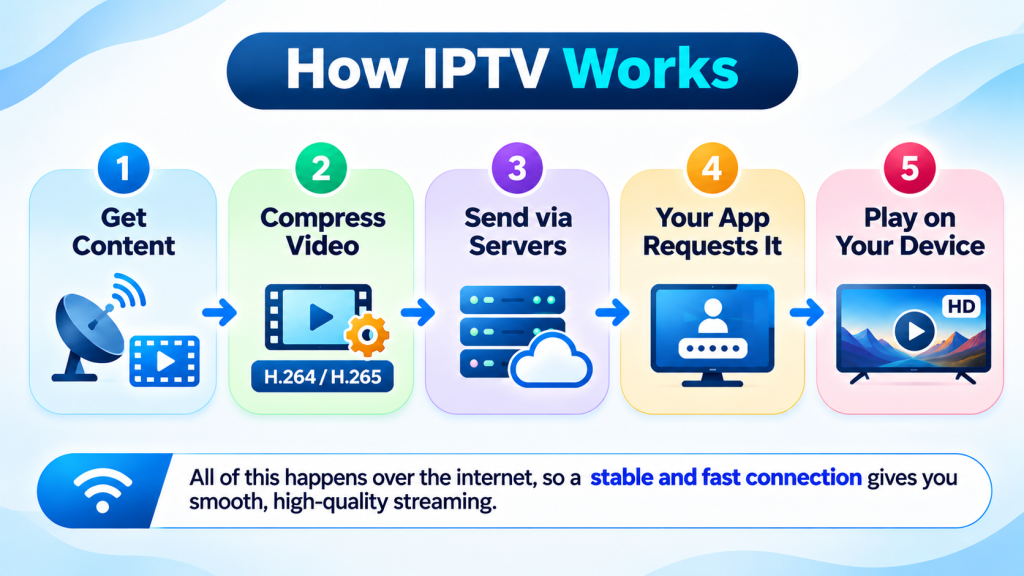
Understanding the process makes troubleshooting much easier. Here is what happens every time you press play:
- Content is collected. The provider receives channel feeds and video files at its servers.
- Video is encoded. The footage is compressed into formats such as H.264 or H.265 so it can travel efficiently over the internet.
- Servers distribute the stream. Content delivery servers send the video to viewers, ideally from a location close to you to reduce delay.
- Your app requests the stream. When you log in, your player app uses your account details to ask the server for the channel you selected.
- Your device decodes and plays it. The app unpacks the data and shows it on screen, usually within a few seconds.
Because everything runs over the internet, your connection quality has a direct effect on picture quality. This is why buffering is almost always a network problem rather than a problem with the TV itself.
What You Need Before You Start
Gather these items first, and setup will go smoothly:
- A stable internet connection. At least 10 Mbps per HD stream. Wired Ethernet is more reliable than Wi-Fi.
- A compatible device. Android phone or tablet, Android TV box, Samsung or LG Smart TV, or Apple TV with a compatible player.
- Your account details. These are normally sent to you by email after you choose a plan.
- A modern remote or keyboard. Typing a long web address is easier with a paired smartphone app or a small keyboard.
- The official app file or store listing. Get it from the official app download page to avoid fake or modified versions.
Which Device Is Best for IPTV?
Any of the devices below works well, so choose the one you already own and trust.
| Device | Best for | How you install the player | Difficulty |
| Android phone or tablet | Watching on the go | App file from the official website | Easy |
| Android TV or Google TV | Big-screen viewing with a remote | App file or TV app store | Easy |
| Samsung or LG Smart TV | No extra hardware | Compatible player from the TV app store | Easy |
| iPhone, iPad or Apple TV | Apple households | Compatible player from the App Store | Easy |
| Windows PC or Mac | Desk or laptop viewing | Desktop media player such as VLC | Medium |
How to Set It Up on Android Phones, Tablets and Android TV
- Open your browser and visit the official download page.
- Download the app file and tap it once it finishes.
- If prompted, allow installation from this source in Settings → Security or Settings → Apps → Special access.
- Tap Install and wait for the confirmation message.
- Open the app and sign in with your account details.
- Pick a channel category, choose a channel and start watching.
After installing, you can switch the unknown-sources permission off again for added security.
How to Set It Up on Samsung and LG Smart TVs
Smart TVs run their own operating systems, Tizen on Samsung and webOS on LG, so they use a compatible IPTV player app from the TV’s app store rather than an APK file.
- Open the TV’s app store and install a compatible IPTV player.
- Launch the player and choose the option to add a playlist or sign in with a provider account.
- Enter the details supplied in your welcome email.
- Wait for the channel list and EPG to load, which can take a minute.
If you are choosing a player, our guides to IPTV apps for Samsung Smart TVs and IPTV players for LG Smart TVs compare the most popular options.
How to Set It Up on iPhone, iPad and Apple TV
Apple devices cannot install app files from a website, so you use a compatible IPTV player from the App Store.
- Open the App Store on your iPhone, iPad or Apple TV and install a reputable IPTV player.
- Launch the player and choose the option to add a playlist or sign in with a provider account.
- Enter the details from your welcome email. On Apple TV, you can type them from your iPhone using the Remote in Control Center.
- Wait for the channels and the TV guide to finish loading.
- Mark your most-watched channels as favourites so they appear first.
How to Set It Up on Windows PC and Mac
If your plan includes a playlist link, a free desktop media player such as VLC is the quickest way to watch on a computer.
- Download and install VLC from the official VideoLAN website.
- Open VLC. On Windows, choose Media → Open Network Stream. On Mac, choose File → Open Network.
- Paste the playlist link from your welcome email and press Play.
- Press Ctrl + L on Windows, or Cmd + Shift + L on Mac, to open the playlist view and browse channels.
- Use the full-screen button once your channel starts.
Setting Up an EPG (TV Guide)
An EPG shows what is currently playing and what is coming next, just like a traditional TV guide. Most players load it automatically, but if your guide looks empty or out of sync, check these points:
- Make sure your device date, time and time zone are correct.
- Refresh the channel list and EPG inside the app settings.
- Wait a few minutes after first login, because the guide data can take time to download.
Our EPG setup guide covers this in more detail.
Tips for the Best Streaming Quality
- Use Ethernet where possible. A cable removes most Wi-Fi interference. If you must use Wi-Fi, choose the 5 GHz band and sit close to the router.
- Restart your router regularly. A weekly reboot clears many hidden connection problems.
- Close background apps. Downloads and other streams on the same network compete for bandwidth.
- Clear the app cache. On Android and Android TV, go to Settings → Apps → See all apps and clear the cache for your player.
- Keep the app updated. New versions fix bugs and improve stability.
- Check your internet speed. Run a speed test on the same device you stream from, not on a different one.
Common Problems and Quick Fixes
Buffering or freezing Restart the router and the device, switch to a wired connection and lower the stream quality if your app allows it.
Black screen or no picture Force close the app, clear its cache and reopen it. If the issue continues, read our black screen troubleshooting guide.
Login failed Re-type your details carefully, because passwords are case sensitive. Make sure there are no extra spaces from copy and paste.
Channels not loading Refresh the playlist inside the app and confirm your subscription is still active.
App will not install Check that you have enough free storage and that unknown-source installs are enabled for the app you are using to open the file.
Safety, Privacy and Legal Notes
IPTV technology itself is perfectly legal and is used by major broadcasters worldwide. What matters is the content you stream. Keep these points in mind:
- Only watch content that you have the right to view in your country.
- Download apps only from official sources, never from random links or forums.
- Do not share your account details, since doing so can lead to suspension.
- Consider using a reputable VPN if you want extra privacy on public networks.
- Keep your device software updated for the latest security patches.
Final Thoughts
Setting up IPTV is far simpler than most people expect. With a solid internet connection, a compatible device and the right app from an official source, you can be watching in minutes. Follow the steps above, apply the quality tips and use the troubleshooting section whenever something goes wrong. If you are ready to get started with Xtreme HD IPTV, visit the official website for current plans, app downloads and support.
Frequently Asked Questions
What is IPTV in simple words?
IPTV is television delivered over the internet. Instead of a dish or cable, you stream channels and shows through an app on your device.
How much internet speed do I need?
About 5 Mbps for standard definition, 10 Mbps for HD and 25 Mbps or more for 4K. If several people stream at once, add the requirements together.
Can I use it on more than one device?
That depends on your plan. Check the plan details on the pricing page for the number of connections allowed.
Why does my stream buffer?
The most common causes are weak Wi-Fi, a slow connection, an overloaded router or too many devices sharing the network. Try a wired connection first.
Do I need a VPN?
No, a VPN is not required, but some viewers use one for extra privacy. It can slightly reduce speed, so test with and without it.
Where can I find more answers?
Visit the FAQ page on the official website for further questions about accounts, devices and troubleshooting.
In the digital age, the way we consume television and media has undergone a significant transformation, and Internet Protocol Television Read more

The landscape of the streaming industry has changed dramatically in recent years, with several players vying for dominance. Typhoon IPTV Read more

How to jailbreak a Chromebook? Chromebooks have gained popularity as lightweight, efficient, and affordable devices that provide seamless integration with Read more

Kemo IPTV is a popular IPTV service provider that delivers television programs and other video content to your device. The Read more