
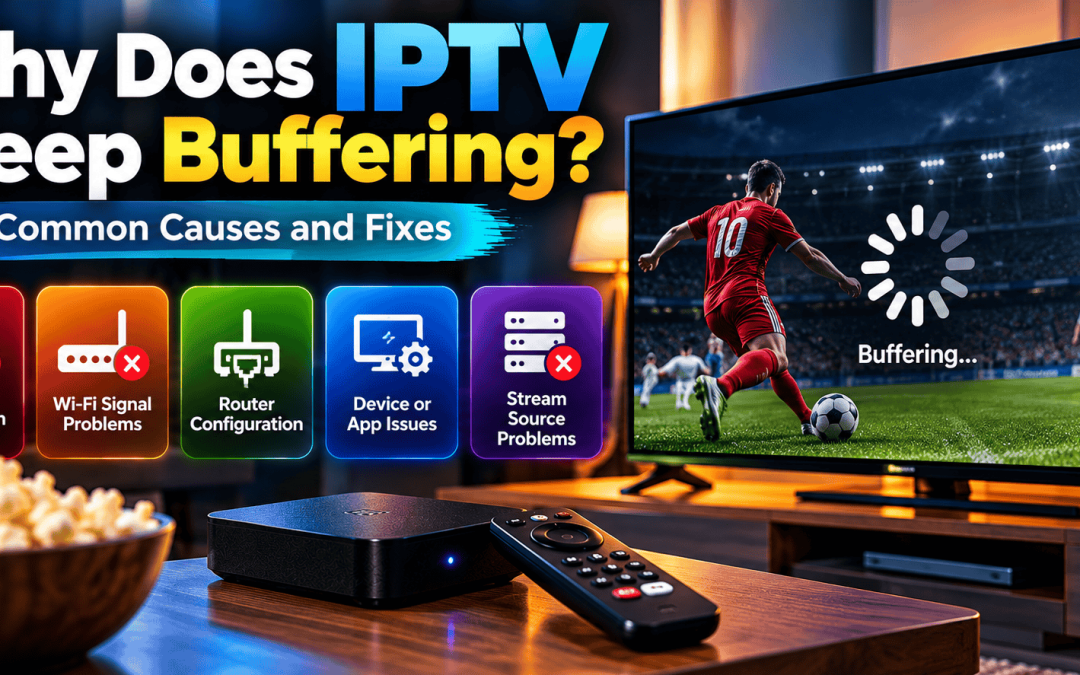
Few things are more frustrating than a video that pauses every few seconds. You start watching a programme, the picture freezes, a loading symbol appears, and playback eventually resumes—only for the problem to happen again.
If you are wondering why IPTV keeps buffering, the cause could be your internet connection, wireless signal, router, streaming device, application, or the source stream itself. The key is to identify which part of the setup is responsible rather than changing every setting at once.
This guide explains the most common IPTV buffering problems and provides practical troubleshooting steps for televisions, streaming boxes, phones, and other compatible devices.
What Is IPTV Buffering?
Buffering occurs when a player cannot receive or process video data quickly enough to maintain continuous playback. The player pauses to collect more data before continuing.
Occasional buffering can happen on many types of streaming services. Frequent interruptions, however, may indicate a connection problem, device limitation, application issue, or unreliable source.
Buffering is not always caused by slow internet alone. A connection may appear fast during a speed test but still experience interference, packet loss, congestion, or unstable performance during streaming.
1. Check Your Internet Connection
A weak or inconsistent internet connection is one of the first things to investigate.
Start by opening another trusted streaming service or website on the same device. If several services are slow, the issue may be related to your home network or internet provider rather than the IPTV application.
Next, run an internet speed test using a reputable service. Test close to the television or streaming device, if possible, because Wi-Fi performance can vary significantly between rooms.
Do not focus exclusively on the headline download-speed figure. Stability matters too. A connection that repeatedly drops or fluctuates can interrupt playback even if its peak speed looks adequate.
For a more useful test:
- Stop large downloads and unnecessary high-bandwidth activity temporarily.
- Test the connection on the device that is buffering.
- Repeat the test at a different time if the issue appears only during busy periods.
- Compare performance using another device on the same network.
- If multiple devices have trouble, contact your internet provider when necessary.
The bandwidth required depends on the stream’s resolution, compression, bitrate, and other network activity. There is no single speed figure that guarantees uninterrupted playback in every situation.
2. Improve Your Wi-Fi Signal
Wi-Fi can become unreliable when the television is far from the router or when walls, floors, furniture, and nearby electronic devices interfere with the signal.
If your streaming device uses Wi-Fi, try moving it closer to the router. Avoid placing the router inside a closed cabinet or behind large objects.
You can also try the following:
- Place the router in a central, elevated location.
- Reduce obstacles between the router and television.
- Test the 5 GHz band when the device is relatively close to the router.
- Consider 2.4 GHz if the device is farther away and needs better coverage, recognizing that interference and congestion may still affect it.
- Restart the router if the connection has become unstable.
The best Wi-Fi band depends on your home layout, router, device, and surrounding wireless networks. A 5 GHz connection can offer more capacity at shorter distances, while 2.4 GHz may reach farther in some environments.
If your television is in a distant room, consider a properly configured mesh system or access point rather than assuming a stronger internet package will solve a local Wi-Fi coverage problem.
3. Try Ethernet Instead of Wi-Fi
If your television or streaming box has an Ethernet port, a wired connection is worth testing.
Ethernet avoids many forms of wireless interference and can provide more consistent network performance. Connect the device to your router with a suitable cable, then test the same stream again.
If buffering stops over Ethernet, the problem may be related to Wi-Fi coverage, interference, or wireless configuration.
If buffering continues, investigate other possible causes, such as the stream source, application, router’s internet connection, or device performance.
Not every television has a built-in Ethernet port, and some devices may require a compatible adapter. Check the manufacturer’s documentation before purchasing additional equipment.
4. Restart Your Router and Streaming Device
Restarting devices can resolve temporary network or software problems.
First, close the IPTV application. Restart your television or streaming box using its normal power menu. Then restart your router according to the manufacturer’s instructions and allow the internet connection to return fully before testing playback.
Avoid repeatedly unplugging equipment while it is updating or performing other operations. Follow the device manufacturer’s recommended restart procedure.
If the problem returns frequently after every restart, a temporary software issue may not be the underlying cause. Continue with the remaining checks rather than treating rebooting as a permanent fix.
5. Check the IPTV App and Player Settings
Different IPTV players handle playlists, decoding, buffering, and playback differently. A setting that helps one device may not improve another.
Check whether the application has a pending update. Use the official app store or the developer’s trusted distribution channel.
If the player offers a buffer-size setting, test changes cautiously and record the original value. A larger buffer may reduce brief interruptions caused by small network fluctuations, but it can increase startup delay and will not repair a consistently poor connection or an unavailable source.
Some applications also offer hardware-decoding options. If video freezes, displays visual artifacts, or behaves differently after an update, consult the app’s documentation before changing decoding settings.
Do not install unknown modified applications just to obtain additional buffering controls. Unverified software can introduce security and privacy risks.
6. Clear the App Cache When Appropriate
Some streaming applications store temporary files that may become corrupted or consume unnecessary storage.
On supported Android devices, you may be able to open the application settings, select the IPTV player, and clear its cache.
Be careful to distinguish Clear cache from Clear data. Clearing application data may remove playlists, login details, preferences, or other local settings. Make sure you have the authorized configuration details available before using a reset option.
On other televisions and streaming devices, the equivalent process may be different. Consult the manufacturer’s or app developer’s instructions.
If the app continues to malfunction, an update or reinstall may help, but only after confirming that you can restore your authorized setup.
7. Check Whether One Stream or All Streams Are Affected
This is one of the most useful troubleshooting steps.
Try more than one stream you are authorized to access, preferably from different categories or sources if your service offers them.
If every stream buffers: Investigate the device, local network, internet connection, and player.
If only one stream buffers: The problem may relate to that particular source, its bitrate, availability, or format.
If buffering occurs only at certain times: Network congestion or a time-specific issue with the source may be involved.
If other streaming apps work normally: The issue may be specific to the IPTV application, playlist, or service, although this does not conclusively rule out network problems.
Record what you observe before contacting technical support. Clear information makes it easier to distinguish a device issue from a source-side issue.
8. Consider Device Performance and Available Storage
Older televisions and streaming boxes may struggle with demanding video formats, large playlists, or applications that require more resources than the device can comfortably provide.
Close applications you are not using, check available storage, and install appropriate system updates.
If the device feels slow throughout its interface—not just while playing IPTV—performance or storage limitations may be contributing to the problem.
Also confirm that the application and video format are supported by your hardware. A stream can be technically available but still perform poorly on a device that cannot decode it efficiently.
If you are choosing a new device, review supported video formats, software-update policies, available storage, network connectivity, and the app’s official compatibility information.
9. Check the Stream Source and Service Status
Sometimes the problem is outside your home network.
A source stream may be temporarily unavailable, overloaded, incorrectly configured, or delivered at a bitrate that is difficult for your current connection to sustain. A provider may also be experiencing a temporary service interruption.
If the network works normally and only a particular stream is affected, check the authorized provider’s official status information or contact its support team.
For Xtreme HD IPTV users, use the service’s official support and documentation channels to confirm supported devices, playlist details, and any known service issues. Avoid sharing passwords or private playlist URLs publicly.
If support requests diagnostic information, provide relevant details such as your device model, application version, approximate time of the issue, and whether other streams work.
10. Match Video Quality to Your Connection
Higher-resolution streams can require more bandwidth than lower-resolution alternatives, depending on their encoding and bitrate.
If the service legitimately provides multiple quality options, test a lower resolution and compare playback stability. If the lower-quality option plays reliably while the higher-quality option buffers, the connection or device may be struggling with the greater demand.
Remember that resolution alone does not determine bandwidth requirements. Two streams with the same resolution can have different bitrates and compression efficiency.
Choose a quality level that your network and device can sustain consistently rather than selecting the highest available option automatically.
Common IPTV Buffering Myths
“A Faster Internet Plan Always Fixes Buffering”
Not necessarily. A faster plan will not automatically fix poor Wi-Fi coverage, packet loss, an overloaded router, unsupported formats, or an unavailable stream.
“A VPN Always Stops IPTV Buffering”
A VPN can sometimes change routing and improve a specific connection, but it can also add overhead or increase latency. It is not a universal buffering solution. Follow local laws and the relevant service’s terms when choosing network tools.
“Reinstalling the App Fixes Every Problem”
Reinstalling may resolve corrupted application files, but it will not fix a weak wireless signal or a problem with the source stream. Diagnose the issue first to avoid unnecessary work.
“Buffering Means the Provider Is Always at Fault”
Buffering can originate at several points between the source and your screen. Test your local connection and compare multiple streams before deciding where the problem lies.
Conclusion
IPTV buffering problems can have several causes, so a structured approach is more effective than changing random settings. Start with your connection, improve Wi-Fi or test Ethernet, restart your devices, check the player, and compare multiple authorized streams.
If the problem persists after local troubleshooting, gather the details and contact your service or internet provider as appropriate. Identifying whether the issue affects one stream, one device, or the entire network is often the fastest way to find the next step.
About Xtreme HD IPTV: Consult the service’s official documentation for supported devices, player configurations, and authorized troubleshooting guidance.
FAQ’s
A speed test measures performance at a particular moment. Wireless interference, packet loss, congestion, device limitations, and source-side problems can still interrupt playback.
Evening buffering can be associated with increased household network use, local congestion, or a time-specific issue affecting a source. Compare wired and wireless performance and test at different times to narrow down the cause.
Yes, it can help when Wi-Fi instability is the cause. It will not necessarily help if the source stream or wider internet connection is the problem.
Only if your player supports the option and you have reason to test it. A larger buffer can help with brief fluctuations but may increase loading time and cannot compensate for a sustained lack of bandwidth.
Look for other symptoms, such as application crashes, a slow interface, or problems limited to that player. Compare authorized streams, check app updates, and test the same network with another supported application where practical.

In the digital age, the way we consume television and media has undergone a significant transformation, and Internet Protocol Television Read more

The landscape of the streaming industry has changed dramatically in recent years, with several players vying for dominance. Typhoon IPTV Read more

How to jailbreak a Chromebook? Chromebooks have gained popularity as lightweight, efficient, and affordable devices that provide seamless integration with Read more

Kemo IPTV is a popular IPTV service provider that delivers television programs and other video content to your device. The Read more