
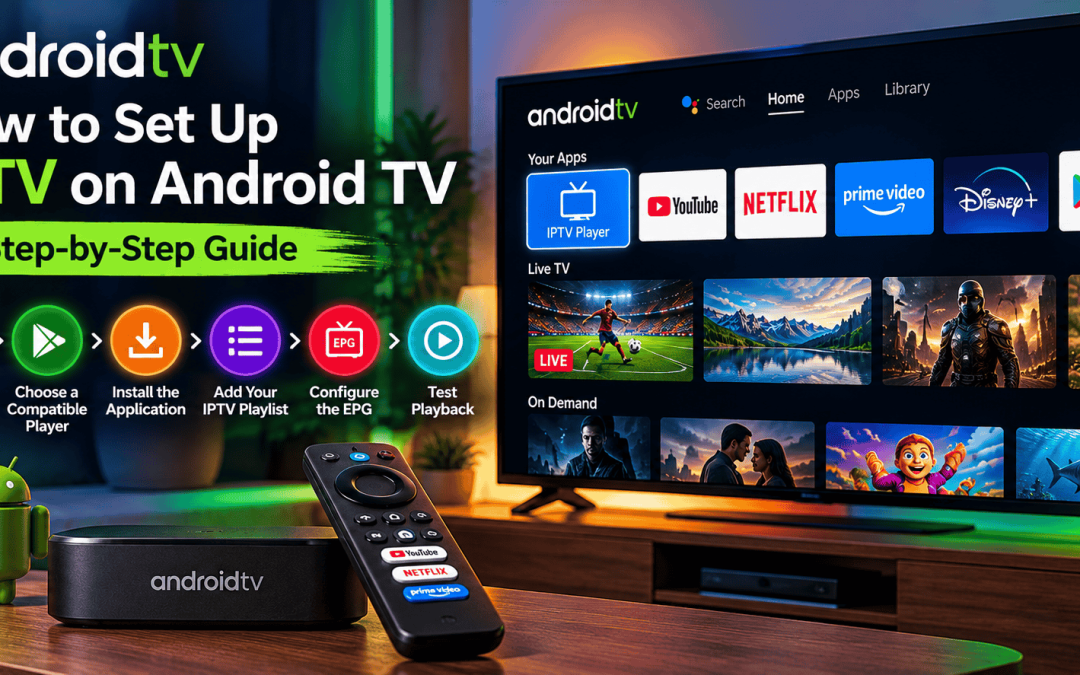
Android TV makes it easy to access streaming apps, live television services, on-demand entertainment, and other digital content from one screen. However, setting up an IPTV player for the first time can be confusing if you are unfamiliar with playlists, electronic programme guides, or app compatibility.
This guide explains how to complete an IPTV setup on Android TV, from checking your device and choosing a suitable player to adding your authorized service details and resolving common playback problems.
Whether you use a television with Android TV built in or an Android TV streaming device, the general process is similar. Menu names and available applications may vary depending on your device model and software version.
What Do You Need Before Setting Up IPTV?
Before installing an IPTV player, prepare the following:
- An Android TV device: Check that your television or streaming box runs Android TV or a compatible version of Google TV.
- A stable internet connection: A reliable connection helps reduce buffering and interruptions.
- A compatible IPTV player: Choose an application that supports your device and the playlist format supplied by your authorized provider.
- Authorized service details: Depending on the service, these may include an M3U playlist URL, Xtream Codes API credentials, or another supported configuration method.
- Optional EPG information: An electronic programme guide can display programme names, descriptions, and schedules when supported by the app and service.
Keep your login details private. Only use playlist links and credentials supplied by a service you are authorized to access.
Step 1: Check Your Android TV and Internet Connection
Start by confirming that your device is connected to the internet.
Open the television’s network settings and check whether it is connected through Wi-Fi or Ethernet. If you are using Wi-Fi, make sure the device has a strong signal where the television is installed.
Next, check for available system updates. The exact menu varies, but you can generally find software information under Settings and then a section such as System, Device Preferences, or About.
Install any appropriate updates before proceeding. Updated software may improve compatibility, stability, and security.
If you use an external Android TV box, confirm that it has sufficient available storage for new applications.
Step 2: Choose a Compatible IPTV Player
An IPTV player is an application that organizes and plays streams from a compatible source. It does not necessarily provide television channels or streaming rights itself.
When choosing an Android TV IPTV player, consider these factors:
Android TV compatibility: Look for an app designed for television screens and remote controls. Mobile-only apps may be difficult to operate on a large screen.
Playlist support: Confirm whether the player accepts your authorized provider’s format, such as M3U or a supported API login.
EPG support: If programme schedules matter to you, check whether the app supports electronic programme guides.
Ease of navigation: A clear channel list, search function, favourites section, and category filters can make everyday use more convenient.
Privacy and reliability: Review the app’s publisher, permissions, privacy information, and update history. Download applications from trusted sources.
You can start by opening the Google Play Store on your Android TV device and searching for a compatible player. Availability varies by country, device, and application.
Avoid installing unfamiliar APK files from unverified websites. If an app is not available through your device’s official store, investigate its publisher and official distribution method before installing it.
Step 3: Install the IPTV Application
Once you have chosen a compatible player:
- Open the Google Play Store on your Android TV device.
- Search for the application by its exact name.
- Open the listing and check the developer and compatibility information.
- Select Install if the application is available for your device.
- Wait for the installation to finish.
- Open the app and review any initial setup instructions.
Some applications may ask you to accept terms, select a preferred language, or choose a display layout.
If the application does not appear in search results, it may not support your device, region, or current Android TV version. Check the developer’s official guidance rather than downloading a random copy.
Step 4: Add Your Authorized IPTV Playlist
After opening the player, look for an option such as Add Playlist, Add User, Login, or Set Up Service.
The wording differs between applications, but most supported setups follow one of these methods.
Option A: Add an M3U Playlist
An M3U playlist is a file or URL that identifies media streams and, in some cases, channel names and categories.
If your authorized provider supplied an M3U URL:
- Select the playlist or URL option in the player.
- Enter the playlist address exactly as provided.
- Add a name for the playlist if the app requests one.
- Confirm the details and allow the player to load the content.
A long playlist may take some time to process. Avoid repeatedly submitting the same link while the application is still loading.
Option B: Use Supported API Credentials
Some providers supply credentials for a supported API-based login. If your player offers this option, enter the server address and account details exactly as supplied by your provider.
Check for extra spaces, incorrect characters, or a missing part of the server address if the login fails.
Never use credentials that belong to another person or attempt to access a service without authorization.
Step 5: Organize Channels and Categories
After the playlist loads, explore the available categories. Depending on the player and playlist, content may be separated into groups such as live channels, films, series, or other collections.
Useful organization features may include:
- Adding frequently watched channels to favourites.
- Hiding categories you do not use.
- Searching by channel or programme name.
- Sorting lists where supported.
- Using separate profiles or playlists if the app supports them.
A well-organized interface makes it easier to navigate with a television remote, especially when the playlist contains many entries.
If some channel names appear incorrectly or categories are missing, refresh the playlist or check with your provider. The player can only display information available in the supplied data.
Step 6: Configure the Electronic Program Guide
An electronic program guide, or EPG, provides scheduling information for supported channels.
If your provider supplies an EPG URL, open the relevant guide or playlist settings in your IPTV player. Enter the address if required, save the configuration, and refresh the guide.
Some playlists already include programme information, so an additional EPG URL may not be necessary.
If schedules are missing or incorrect, check the following:
- The EPG address was entered correctly.
- The guide has finished updating.
- The app supports the guide format.
- The device’s date, time, and time zone are correct.
- The channel identifiers match the guide data supplied by the service.
For more help, see our guide to IPTV EPG setup, after confirming that this is the correct URL for your existing EPG article.
Step 7: Test Playback and Picture Quality
Before settling in to watch, test a few channels or streams you are authorized to access.
Check whether playback starts promptly, audio and video remain synchronized, and the picture looks consistent. Test the app’s navigation and remote-control functions as well.
If the service offers different quality options, choose one that suits your connection and device. Higher-resolution video generally requires more bandwidth and may be less reliable on a weak wireless connection.
Remember that picture quality depends on several factors, including the source stream, device capability, network conditions, and display settings. Installing a player alone cannot guarantee a particular resolution or uninterrupted playback.
Common Android TV IPTV Problems and Fixes
The IPTV App Will Not Install
Check available storage, device compatibility, and system updates. If the app is unavailable in the official store, confirm its supported devices and official installation instructions.
The Playlist Will Not Load
Verify the playlist URL or login information. Confirm that the subscription or authorized service is active and that the source is reachable. If the details are correct but loading still fails, contact the provider.
Channels Appear but Do Not Play
Check the internet connection and test another authorized stream. The problem may relate to the source, the player’s supported formats, or a temporary service issue.
IPTV Keeps Buffering
Pause other downloads, move the device closer to the router, or test a wired Ethernet connection if available. You can also restart the router and streaming device.
For more detailed advice, read our guide to smart TV streaming troubleshooting, provided that URL matches your published article.
The EPG Shows Incorrect Times
Check the television’s time zone and refresh the guide. If only certain channels have incorrect schedules, the issue may be related to the source data or channel mapping.
Is Android TV Suitable for IPTV?
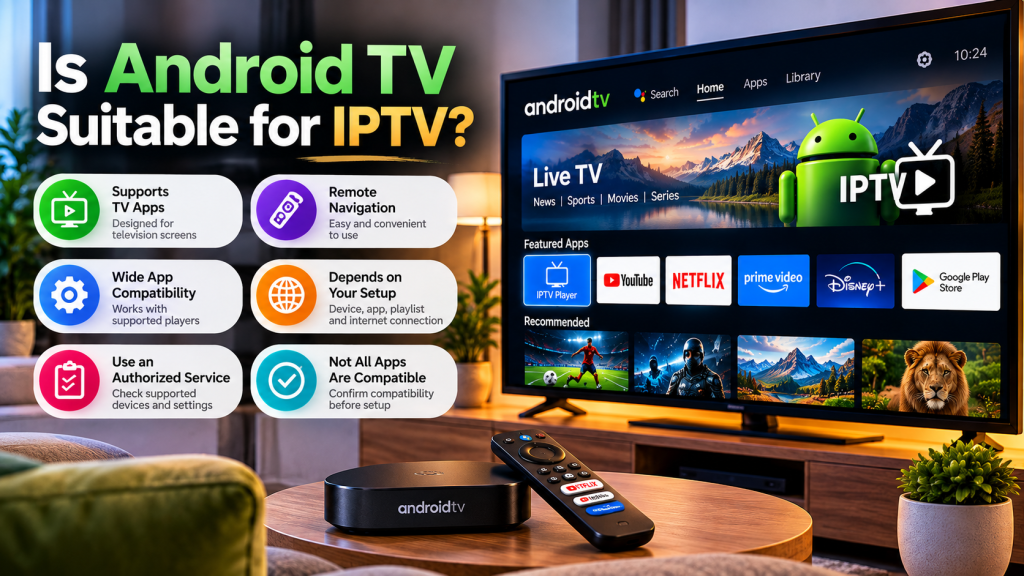
Android TV can be a convenient platform for IPTV because it supports television-focused applications and remote-control navigation. However, the experience depends on the device, app, playlist format, internet connection, and authorized service you use.
When evaluating a service such as Xtreme HD IPTV, confirm which devices and player configurations are officially supported before setting everything up. Do not assume that every IPTV application is compatible with every provider.
Conclusion
Setting up IPTV on Android TV is usually straightforward when you use a compatible player and the correct authorized playlist details. Start with device and network checks, install a trusted app, add your source, and configure the EPG if necessary.
If you experience problems, troubleshoot the connection and configuration before reinstalling applications or changing multiple settings at once. A careful setup can make your Android TV streaming experience easier to manage and maintain.
About Xtreme HD IPTV: Check your service’s official documentation for current compatibility information, supported player configurations, and authorized access instructions.
FAQ’s
Yes. If your television has a compatible Android TV or Google TV system and supports the necessary application, you may not need an external device.
A player may install and open without a subscription, but accessing channels or streams generally requires a compatible source. Use a service and content you are authorized to access.
Possible causes include an unavailable stream, incorrect playlist details, an unsupported format, or a network problem. Test another authorized stream and verify your configuration.
That depends on your provider’s terms, account limits, and the playlist format. Check your service conditions before adding the same credentials to additional devices.
No. Some playlists include programme information, while others require a separate guide source. Your player and provider must support the relevant format.

In the digital age, the way we consume television and media has undergone a significant transformation, and Internet Protocol Television Read more

The landscape of the streaming industry has changed dramatically in recent years, with several players vying for dominance. Typhoon IPTV Read more

How to jailbreak a Chromebook? Chromebooks have gained popularity as lightweight, efficient, and affordable devices that provide seamless integration with Read more

Kemo IPTV is a popular IPTV service provider that delivers television programs and other video content to your device. The Read more