
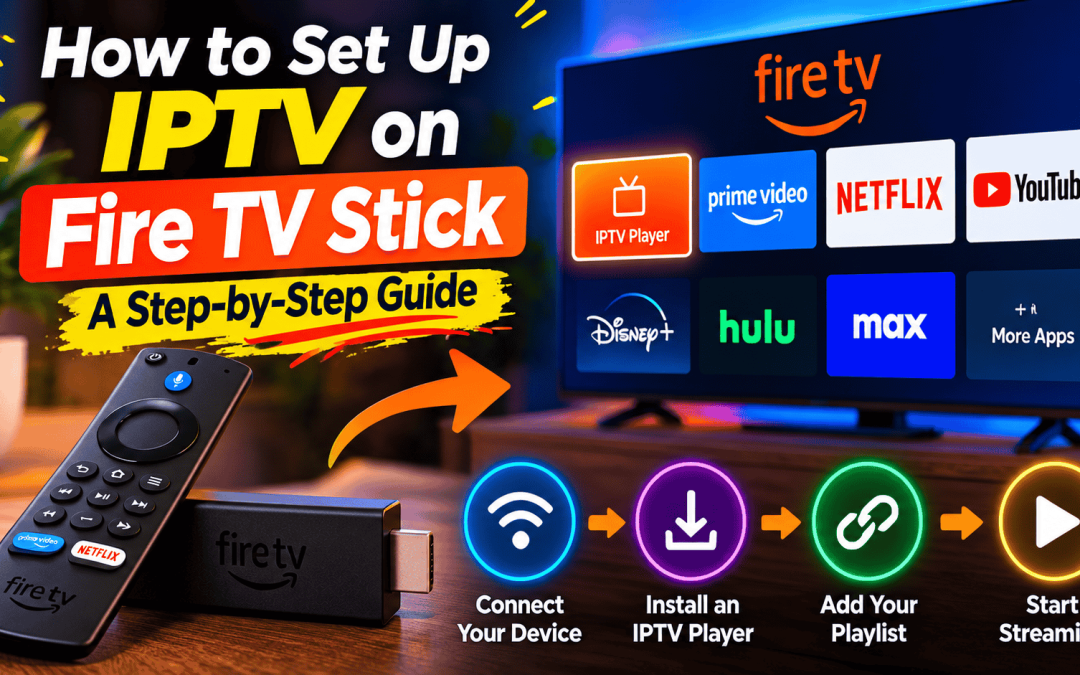
Amazon Fire TV devices provide access to a range of streaming applications, making them a popular option for watching internet-delivered television. Depending on your device model, region, and application availability, you may be able to use a compatible IPTV player to watch authorized streaming content.
Setting up an IPTV player involves checking compatibility, installing the application through an appropriate source, and configuring a supported content source. The exact process varies by application.
In this guide, Xtreme HD IPTV explains the general setup process, common compatibility issues, and practical troubleshooting steps for Fire TV users.
What Do You Need Before Getting Started?
Before setting up IPTV on your Fire TV Stick, prepare the following:
- A compatible Amazon Fire TV device.
- A stable internet connection.
- An IPTV player that supports your device and content format.
- An authorized playlist or provider account, if required.
- Your provider’s official setup instructions.
Check your device model and software version before choosing an application. Not every IPTV player is available for every Fire TV device or region.
Remember that an IPTV player is software; installing it does not automatically provide television channels or content distribution rights.
Step 1: Connect Your Fire TV Stick
Connect the Fire TV Stick to a compatible HDMI port on your television and follow the manufacturer’s initial setup instructions.
Connect the device to your home network through Wi-Fi or another supported connection method. Complete any required system updates before installing additional applications.
Open an existing streaming application to confirm that the device can access online content. If multiple applications cannot connect, troubleshoot the network before configuring IPTV.
Step 2: Find a Compatible IPTV Player
Review the official Amazon Appstore and the application’s verified documentation to find a player that supports your device.
Before installing it, check:
- Supported Fire TV models and software versions.
- Compatible playlist and connection formats.
- Electronic Programme Guide (EPG) support.
- Available playback controls.
- Privacy practices and update history.
Choose an application that meets your requirements rather than selecting one based only on its name or advertising.
If the application is unavailable, check the developer’s official compatibility information. Avoid unknown installers and websites that ask you to provide credentials before explaining how the software works.
Step 3: Install the Application
If the player is available through the official app store, open its listing, review the details, and follow the installation instructions.
Once installation finishes, launch the application and review its introductory settings.
Some players may request access to certain device features. Review the requested permissions and allow only those appropriate to the application’s documented functionality.
Keep your Fire TV software updated using the manufacturer’s supported process.
Step 4: Connect Your Authorized Streaming Source
Open the player and follow the instructions supplied by your authorized content provider.
Depending on the application, configuration may involve a supported playlist file, provider-issued account details, or another documented connection method.
Check that the connection information has been entered correctly and that the selected format is supported by the application.
Do not share private playlist URLs, passwords, activation codes, or account details publicly. If your connection fails, confirm the configuration with your provider rather than using an unverified alternative.
Step 5: Configure the Programme Guide
If your player supports an Electronic Programme Guide, check whether the guide is included automatically or requires separate configuration.
Follow the provider’s official instructions to connect the supported guide source. Refresh the schedule if necessary and check whether programmer times match your device’s time zone.
If the guide is blank but video playback works, troubleshoot the guide separately. EPG information and video delivery may depend on different sources.
Step 6: Test Playback
Start with an authorized stream that you expect to work.
Check whether playback starts, the audio is synchronized, and the video remains stable. If the player offers supported resolution or subtitle settings, review them only when needed.
If a stream fails, test another authorized source to determine whether the problem affects one stream or the entire application.
This simple comparison helps identify whether the likely cause is the content source, application, device, or network.
Common Fire TV IPTV Problems
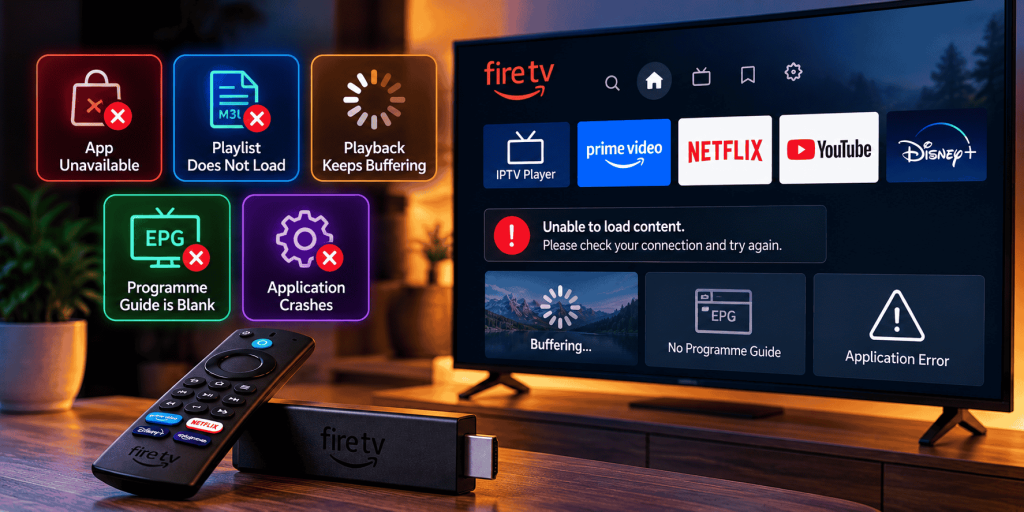
The application is unavailable
Check the official app store, device compatibility, and regional availability. Do not assume that every application supports every Fire TV model.
The playlist does not load
Verify the connection information, playlist format, and provider account status. Contact the authorized provider if the source appears unavailable.
Playback keeps buffering
Test your network connection, improve Wi-Fi reception, and check whether other devices are using substantial bandwidth. If only one stream buffers, investigate that source separately.
The programme guide is blank
Confirm EPG support, review the configured source, and refresh the guide. Check the device’s date and time settings if schedules appear incorrect.
The application crashes
Restart the application and device, check for official updates, and review the developer’s compatibility documentation. Avoid clearing application data until you know how to restore your settings.
How to Improve Streaming Stability
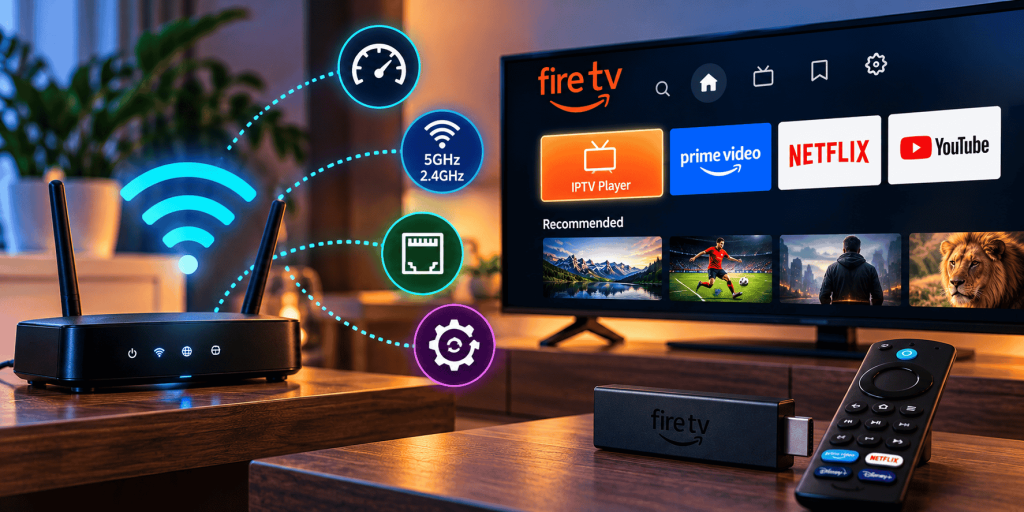
A stable connection is important for consistent video playback.
Place the router where the Fire TV device can receive a reliable signal. If your network supports different Wi-Fi bands, test the option that performs best in your environment.
Reduce unnecessary network congestion when possible. If the device or your network equipment supports a wired connection, testing Ethernet can help determine whether Wi-Fi is contributing to the problem.
Also check for software updates and make sure the application supports the content format being played.
Conclusion
Setting up IPTV on a Fire TV Stick begins with compatibility, a trustworthy application source, and a properly authorized content connection. Once configured, test playback and programme-guide functionality separately so that problems are easier to diagnose.
For persistent errors, record your device model, application version, and exact error message before contacting the relevant support team.
Xtreme HD IPTV recommends following official device documentation and using only content sources you are authorized to access.
FAQ’s
No. Compatibility varies by device, software version, application availability, and region.
Not necessarily. Many players require a separate, authorized content source.
Possible causes include unstable Wi-Fi, network congestion, device limitations, application errors, or source-side problems.
Use official stores and verified developer sources whenever possible. Unknown installers can create security and privacy risks.
In the digital age, the way we consume television and media has undergone a significant transformation, and Internet Protocol Television Read more

The landscape of the streaming industry has changed dramatically in recent years, with several players vying for dominance. Typhoon IPTV Read more

How to jailbreak a Chromebook? Chromebooks have gained popularity as lightweight, efficient, and affordable devices that provide seamless integration with Read more

Kemo IPTV is a popular IPTV service provider that delivers television programs and other video content to your device. The Read more