
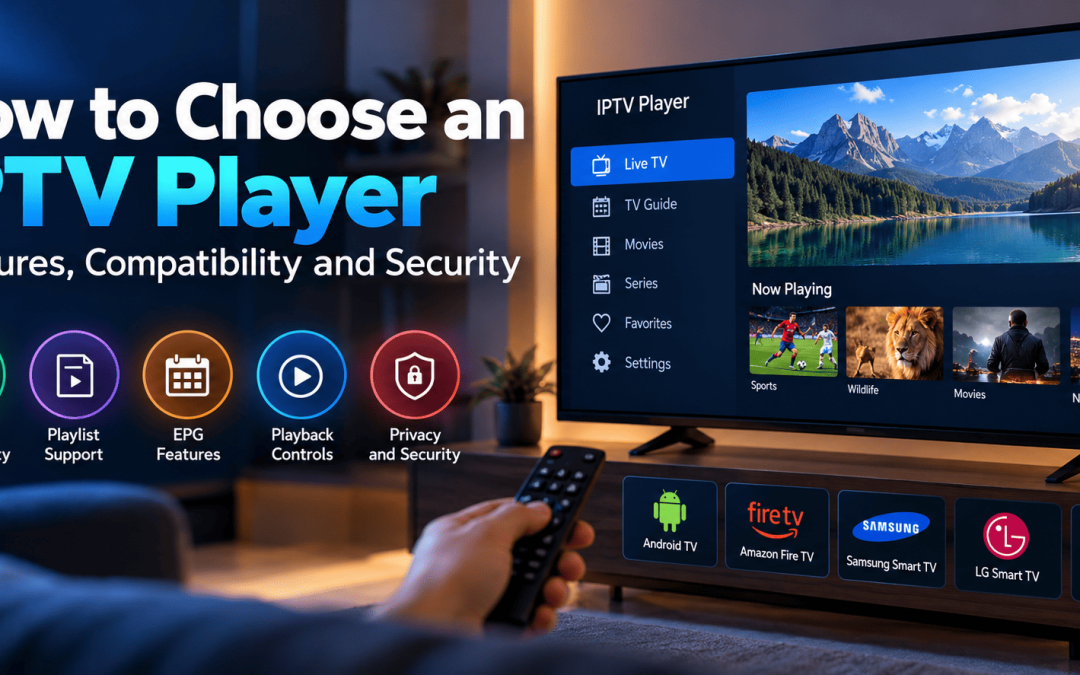
Choosing an IPTV player can be confusing because many applications advertise similar features. Some focus on simple playback, while others offer programmer guides, playlist organization, favorites, subtitles, and advanced navigation options.
The best choice depends on your device, the content format you need to play, and the features you actually use. An application that works well on an Android TV device, for example, may not be available for a particular Samsung or LG Smart TV.
It is also important to understand that an IPTV player and a television-content provider are not necessarily the same thing. The player is software used to access compatible content; a separate provider may supply the content under its distribution rights.
This guide explains the main factors to consider before choosing and installing an IPTV player.
At Xtreme HD IPTV, we understand that choosing the right IPTV player depends on your device, preferred features, and connection requirements. This guide will help you compare the key features so you can make an informed choice.
1. Check Device and Operating-System Compatibility
Start by identifying the exact device on which you want to watch content.
Common platforms include:
- Android TV and supported Google TV devices.
- Amazon Fire TV devices.
- Samsung Smart TVs.
- LG Smart TVs.
- Windows computers and other supported systems.
Compatibility depends on the application, operating-system version, device model, and sometimes your region.
Before installing a player, check the developer’s official documentation or the device’s official application store. Do not assume that an application available on one television platform will also be available on another.
If an application is unavailable for your TV, check the manufacturer’s supported alternatives. A compatible external streaming device may be an option, provided it supports your intended application and authorized content source.
2. Understand Playlist and Connection Support
IPTV applications support different ways of connecting to a content source.
Depending on the application, these may include M3U playlists, provider-issued account credentials, or other documented connection formats.
Before choosing a player, ask:
- Which playlist formats does it support?
- Does it support the connection method provided by your service?
- Can it organize channels into categories?
- Does it support programme-guide data?
- Can you restore your configuration if you change devices?
Do not assume that every player accepts every format. Confirm compatibility using the developer’s documentation and your authorized provider’s instructions.
Keep private playlist URLs and account credentials secure. A playlist address may provide access to your account or subscribed content, so it should not be shared publicly.
3. Look for Electronic Programme Guide Support
An Electronic Programme Guide, or EPG, displays programme schedules and descriptions.
If you want to browse upcoming programmes, check whether the player supports EPG data and whether it can match that data to the channels in your playlist.
Useful features may include:
- A grid or list of programme schedules.
- Programme titles and descriptions.
- Schedule refresh controls.
- Channel matching or mapping options.
- Navigation between current and upcoming programmes.
These features depend on the application and the data supplied by your provider. Installing a player with EPG support does not guarantee that programme information will be available for every channel.
For more information about configuring guide data, see your site’s related IPTV EPG setup guide.
4. Evaluate Playback Quality and Controls
A useful player should make watching authorized content straightforward.
Consider whether it offers stable playback for supported formats, accessible controls, responsive menus, and clear error messages.
Depending on the application, additional features may include subtitle selection, audio-track controls, aspect-ratio options, and a favorites list.
However, a player cannot compensate for every problem with the content source or network. Buffering may be caused by a weak Wi-Fi connection, an overloaded network, a device limitation, or an unavailable stream.
If playback quality is poor, test the network and source before concluding that the player itself is responsible.
5. Check Navigation and Ease of Use
The interface matters, especially on televisions controlled with a remote rather than a mouse or touchscreen.
Look for readable text, clear categories, predictable back-button behaviour, and controls that are easy to select from a distance.
If several people use the same television, consider whether the application makes it easy to find favourites and return to previously viewed content.
Avoid selecting an application solely because it offers the largest number of features. A simpler player may be more suitable if it supports your device and provides the functions you need.
6. Review Privacy and Security
An IPTV player may handle playlist addresses, login details, viewing preferences, or other account information.
Before installing it, review the developer, privacy policy, requested permissions, update history, and official distribution source.
Use applications from trusted stores or verified developer websites. Avoid unknown installers that request unnecessary permissions or ask for credentials through unrelated websites.
Never publish private playlist URLs or account details in support forums. If you need help, provide the application name, device model, and error message without sharing sensitive access information.
7. Compare Free and Paid Applications
Some IPTV players are free, while others charge for premium features or activation.
Before paying, confirm exactly what the fee covers. A payment may unlock the player software without including a separate television-content subscription.
Compare the practical differences between the free and paid options. These might include additional interface features, device support, playlist management, or guide functionality.
Check the developer’s current pricing, refund terms, supported devices, and licensing conditions. Do not assume that a more expensive player will automatically deliver better video quality.
8. Understand the Difference Between a Player and a Provider
These terms are often confused, but they refer to different components.
IPTV player: Software used to organize and play compatible streams.
Streaming provider: A service that supplies access to content under its applicable terms and distribution rights.
EPG source: Data containing programme schedules and related information.
Internet connection: The network that carries the streaming data to your device.
These components may be supplied or maintained by different organizations. If a channel fails, identifying which component is responsible makes troubleshooting easier.
A player does not automatically provide access to every channel, and installing one does not grant permission to distribute copyrighted content.
9. Troubleshoot Before Switching Players
If your current player stops working, changing applications may not solve the underlying issue.
Start with a few basic tests.
If every stream buffers: Check your network connection, Wi-Fi reception, and device performance.
If one stream fails: Test another authorized stream and check with your provider.
If the playlist will not load: Verify the connection details and supported format.
If the programme guide is missing: Check the EPG source and guide settings.
If the application crashes: Restart it, check for official updates, and review the developer’s troubleshooting instructions.
Change one variable at a time. This makes it easier to identify the actual cause.
Conclusion
Choosing an IPTV player starts with compatibility, supported connection formats, and the features you actually need. EPG support, navigation, playback controls, privacy practices, and ongoing maintenance are also worth evaluating.
Verify the application’s documentation before installing it, and make sure your content source is authorized. A suitable player should work with your device, provide a practical interface, and make troubleshooting straightforward without requiring unnecessary changes to your setup.
FAQ’s
Not necessarily. Many players are software tools that require a separate authorized content source.
No. Compatibility varies by operating system, device model, and application availability.
No. Quality also depends on the content source, network, device capabilities, and supported formats.
It is useful if you want programmer schedules, but it is not essential for every streaming setup.
Check its official distribution source, developer information, privacy policy, permissions, and update history.
In the digital age, the way we consume television and media has undergone a significant transformation, and Internet Protocol Television Read more

The landscape of the streaming industry has changed dramatically in recent years, with several players vying for dominance. Typhoon IPTV Read more

How to jailbreak a Chromebook? Chromebooks have gained popularity as lightweight, efficient, and affordable devices that provide seamless integration with Read more

Kemo IPTV is a popular IPTV service provider that delivers television programs and other video content to your device. The Read more