
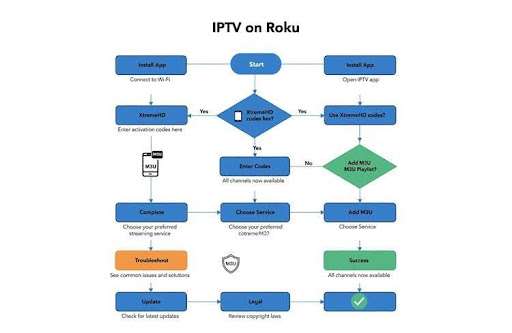
How to Watch IPTV on Roku: Step-by-Step Installation and Setup Guide

IPTV (Internet Protocol Television) delivers TV over your internet connection rather than traditional cable. For Roku owners, it’s an easy way to add live channels and on-demand content. This guide walks you through the equipment you’ll need, the installation steps, and common fixes. We’ll also cover popular Roku-compatible IPTV services and what they offer.
Whether you’ve used IPTV before or this is your first time, these instructions will help you get set up quickly. We explain M3U playlists and show how to enter setup codes for services like XtremeHD IPTV so you can start streaming with minimal fuss.
Key Takeaways
● IPTV streams television over the internet on Roku, expanding viewing choices beyond cable.
● You’ll need a compatible Roku device, a stable internet connection, and a subscription to a Roku-friendly IPTV service.
● Installing IPTV on Roku means connecting to the internet, adding the IPTV channel, and entering provider setup codes.
● M3U playlists let you customize channel lineups inside many IPTV apps.
● Using XtremeHD IPTV setup codes together with M3U playlists can unlock more channels in one place.
● If streaming issues arise, try checking your connection, restarting Roku, or reinstalling the IPTV app.
● Keep Roku and IPTV apps updated to ensure best performance and newest features.
● Popular options on Roku include XtremeHD IPTV, Hulu with Live TV, and Sling TV, each with different channel mixes.
● Always confirm your IPTV provider’s licensing and subscription terms to avoid legal problems and ensure reliable access.
What Equipment and Accounts Are Needed to Watch IPTV on Roku?
To begin, you’ll need a Roku device that supports channels—Roku Streaming Stick, Roku Ultra, or a Roku TV with current software. A reliable internet connection and an active subscription to a Roku-compatible IPTV service are also required.
When choosing a provider, check Roku compatibility and that the service carries the channels you want—sports, movies, or international content. Extra storage or cloud-hosted M3U playlists can help manage large channel lists and recordings if your provider supports them.
How Do You Install IPTV on Roku? Step-by-Step Instructions
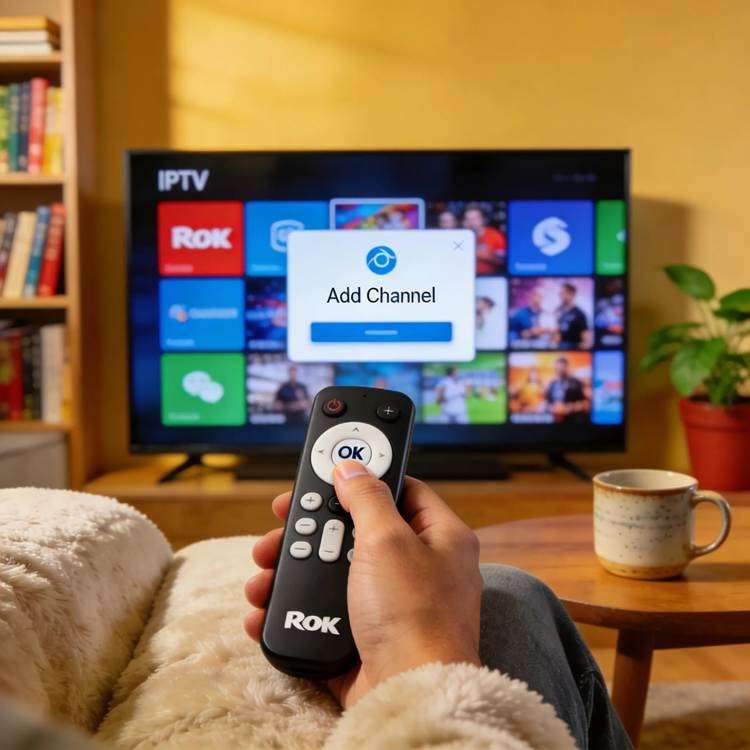
Installing IPTV on Roku is straightforward. Follow these steps:
● Set Up Your Roku Device: Plug in your Roku, power it on, and use the remote to get through the initial setup screens.
● Connect to the Internet: Open ‘Settings’ > ‘Network’ and join your Wi‑Fi or wired network.
● Add the IPTV App: Go to the Roku Channel Store, search for your IPTV app, and select ‘Add Channel’.
● Open the App: Launch the IPTV channel from your Home screen after installation.
● Enter Setup Codes: Follow your IPTV provider’s instructions to enter any activation or setup codes.
How to Enter XtremeHD IPTV Setup Codes on Roku?
Activating XtremeHD IPTV requires entering a setup code. Do this:
● Launch the IPTV App: Open the XtremeHD IPTV channel on your Roku.
● Locate the Code Entry: Look for the activation, account, or settings area in the app.
● Input the Setup Code: Type the XtremeHD setup code exactly as given by your provider.
● Confirm Activation: Submit the code and wait for the app to verify and sign you in.
Once confirmed, your subscription will be linked and the channel lineup should populate.
How to Add and Configure M3U Playlists on Roku for IPTV?
M3U playlists let you load channel lists from a provider. To add one on Roku:
● Open Your IPTV App: Start the IPTV channel you installed.
● Go to Playlist Settings: Find the playlist or input section in the app’s settings.
● Add M3U Playlist: Paste the M3U URL provided by your IPTV service.
● Save and Activate: Save the playlist and return to the main screen—channels from the playlist should appear.
How to Integrate Xtreme Codes and Playlists for Seamless Streaming?
Combine service codes and M3U playlists for fuller channel access:
● Enter Xtreme Code: Open your IPTV app and input the Xtreme setup code.
● Add the M3U Playlist: Paste in the playlist URL as described above.
● Browse Channels: After both steps, review channels from the subscription and the custom playlist together.
This setup gives you a unified channel list and smoother navigation.
What Are Common Troubleshooting Tips for IPTV on Roku?
If IPTV playback stutters or fails, try these quick fixes:
● Check Your Internet: Slow or unstable Wi‑Fi causes buffering—test your speed and move closer to the router if needed.
● Restart Roku: Rebooting often clears temporary glitches. Go to Settings > System > Power > System Restart.
● Reinstall the IPTV App: Removing and reinstalling the channel can clear corrupted cache and reset settings.
When and How to Update Roku or IPTV Apps for Optimal Performance?
Keep software current to avoid compatibility and performance issues:
● Roku Updates: Open Settings > System > System update and select ‘Check now’ to install available updates.
● IPTV App Updates: In the Roku Channel Store, search for the IPTV app and follow prompts if an update is available.
Regular updates help ensure reliable streaming and access to new features.
Which Roku IPTV Apps and Services Offer the Best Channels in 2023?
Several IPTV apps on Roku provide strong channel lineups. Below are a few to consider based on features and availability.
| App Name | Features | Pricing |
| XtremeHD IPTV | Broad channel selection, video‑on‑demand support | Subscription-based |
| Hulu with Live TV | Live channels plus an extensive on‑demand library | Monthly fee |
| Sling TV | Flexible channel packages and add‑ons | Monthly fee |
These services vary by channel mix and price—pick the one that matches your viewing habits and budget.
Where to Find the Best IPTV Channels and Subscription Plans?
To choose the right provider, compare these factors:
● Channel Variety: Make sure the service carries the genres and networks you want.
● Pricing: Match plans to your budget—look for trials or introductory offers.
● User Reviews: Read feedback on reliability, streaming quality, and customer support.
Doing a little research pays off—compare lineups and trial options before subscribing.
What Should You Know About Roku IPTV Legal and Subscription Requirements?
Legal compliance matters. Keep these points in mind:
● Subscription Compliance: Verify that your IPTV provider has rights to the content it distributes.
● User Agreements: Read terms of service so you understand usage rules, refunds, and account policies.
Choosing licensed, reputable services protects you from interruptions and potential legal issues.
Frequently Asked Questions
1. Can I use free IPTV services on Roku?
Free IPTV options exist but often come with trade‑offs—limited channels, lower video quality, or unstable service. Some free streams may not be properly licensed. Paid services usually offer better reliability, more channels, and customer support.
2. How can I find the best IPTV service for my needs?
List the channels and features you care about—sports, local, international—and check provider lineups. Read user reviews for reliability and support. Free trials or short plans can help you test a service before committing.
3. Are there any risks associated with using IPTV services?
Risks include unlicensed content, service outages, and security issues from unofficial apps. To reduce risk, use well‑reviewed providers with transparent terms and secure payment practices.
4. Can I record shows while watching IPTV on Roku?
Most Roku IPTV channels don’t support local DVR recording, but some providers include cloud DVR options. Check your provider’s features if recording is important to you.
5. Is there a way to compare channel options between different IPTV services?
Yes—visit provider websites for channel lineups, read comparison sites, and look for trial access. Many services list channels or offer short trials so you can preview content.
6. What should I do if my IPTV service is not working on Roku?
First, verify your internet connection. Restart the Roku and the IPTV app. Check for service outages or app updates, and contact your provider’s support if problems persist.
7. How do I switch IPTV providers on my Roku?
Uninstall the current IPTV channel, then install the new provider’s channel from the Roku Channel Store. Log in with the new account credentials and back up any M3U playlists or important settings beforehand.
Conclusion
Setting up IPTV on Roku opens up a wide range of live and on‑demand content. Follow the steps above to install apps, add playlists, and enter setup codes so you can start streaming. Explore different services to find the channel mix and features that fit your viewing needs—and enjoy your upgraded streaming experience.
XtremeHD IPTV makes it easy to enjoy live TV, on-demand entertainment, and a smooth viewing experience on your favorite devices. Explore XtremeHD IPTV today and discover a convenient, flexible way to access the content you love, whenever you want to watch.

In the digital age, the way we consume television and media has undergone a significant transformation, and Internet Protocol Television Read more

The landscape of the streaming industry has changed dramatically in recent years, with several players vying for dominance. Typhoon IPTV Read more

How to jailbreak a Chromebook? Chromebooks have gained popularity as lightweight, efficient, and affordable devices that provide seamless integration with Read more

Kemo IPTV is a popular IPTV service provider that delivers television programs and other video content to your device. The Read more