
Firestick IPTV: best apps, a clear setup walkthrough, and practical performance tips to keep your streams steady and reliable.
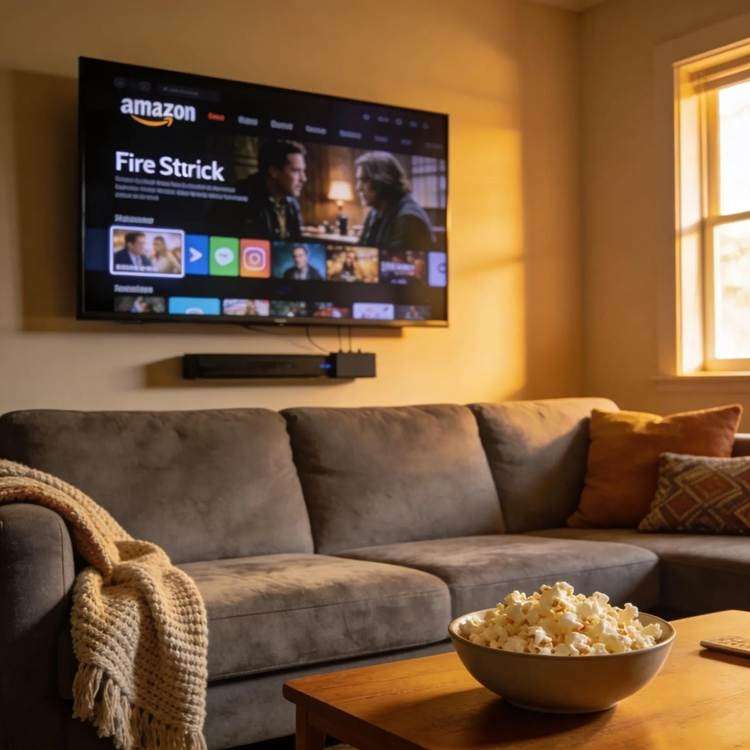
The Amazon Firestick has changed how we watch TV by making streaming apps and IPTV easy to reach. This guide covers the best IPTV apps for Firestick, step-by-step setup instructions, and targeted performance tweaks to reduce buffering. With so many app choices, knowing which ones work well and how to tune your Firestick matters. Many people run into buffering, connection drops, or app glitches — issues that spoil live and on-demand viewing. Here you’ll find setup instructions, optimization techniques, legal subscription options, and troubleshooting steps so you can stream confidently and within the law.
Key takeaways
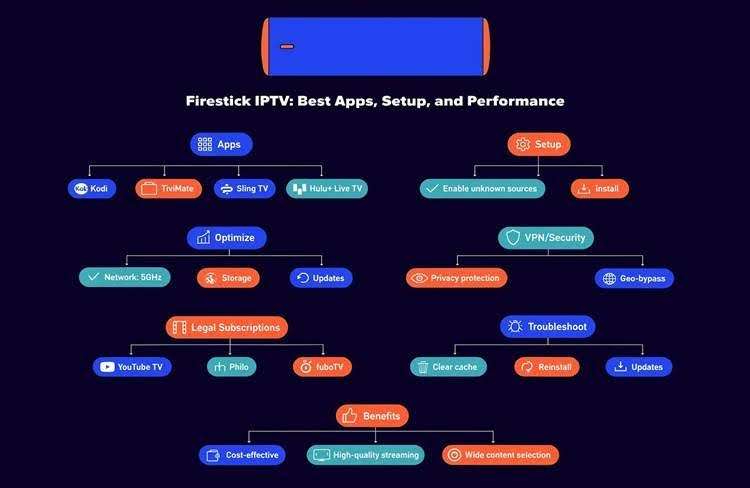
● Firestick supports a range of IPTV apps, including legally licensed and user-friendly options.
● Common legal IPTV choices for Firestick include Kodi, TiviMate, Sling TV, and Hulu + Live TV.
● Installing IPTV usually requires enabling apps from unknown sources (for sideloaded apps), then downloading and installing the app.
● Optimizing settings — network band, storage housekeeping, and keeping software updated — helps prevent slowdowns.
● Network fixes like better Wi‑Fi placement, router QoS, and using a VPN can reduce buffering and stabilize streams.
● A reputable VPN can improve privacy, help bypass geo‑blocks, and in some cases provide steadier performance.
● Legitimate IPTV services such as YouTube TV, Philo, and fuboTV offer licensed content and reliable Firestick apps.
● Typical troubleshooting steps include clearing app cache, reinstalling apps, updating Fire OS, and reducing network load.
● IPTV on Firestick gives flexible access to live and on‑demand channels and can be used across many devices.
What are the best IPTV apps for Firestick in 2023?
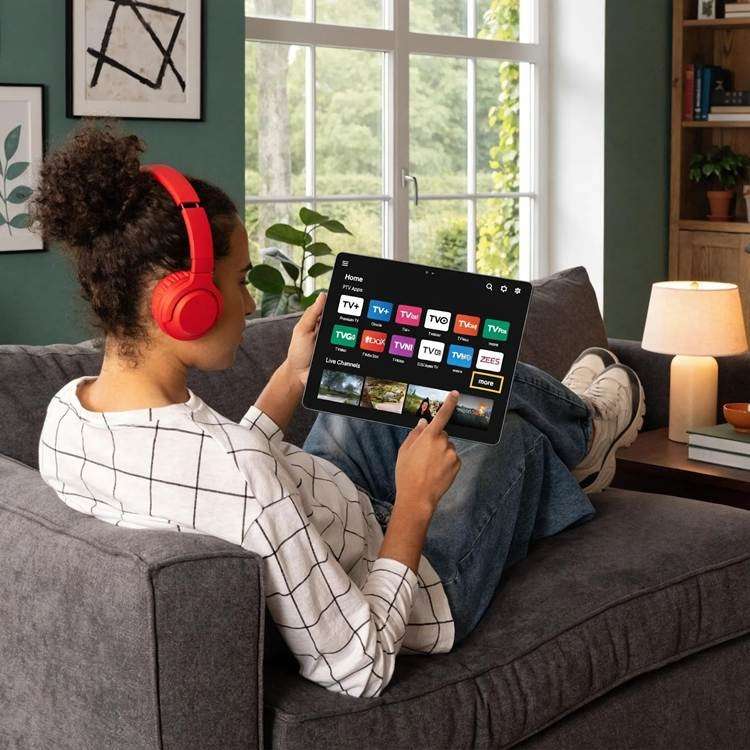
There are many IPTV apps to choose from, and the right one depends on what you value most: ease of use, channel selection, or customization. In 2023, people prioritize compatibility, a clean interface, and reliable playback when picking IPTV apps for Firestick.
Which IPTV apps are compatible and legal on Firestick?
Some well-regarded, legal options offer strong compatibility and user support:
● Kodi: An open‑source media platform with many add‑ons; powerful and flexible when configured responsibly.
● TiviMate: Built for IPTV playlists — clean UI and easy channel management for everyday users.
● Sling TV: A mainstream streaming service with licensed channels and straightforward subscription plans.
● Hulu + Live TV: Combines live broadcast channels with Hulu’s on‑demand library for a full‑service experience.
These apps and services deliver licensed content through paid subscriptions, which means fewer legal risks and better long‑term reliability.
How do Kodi, TiviMate, and other top players compare?
Comparing the apps helps you match features to your needs. Consider these core differences:
● User interface (UI): Kodi is modular and feature‑rich, while TiviMate focuses on a simple, TV‑friendly layout.
● Customization: Kodi supports extensive add‑ons and skins; TiviMate emphasizes straightforward IPTV management.
● Content: Sling and Hulu provide licensed channel lineups; Kodi and TiviMate depend on user playlists or add‑ons for content variety.
Ultimately, pick the app that fits your routine: full customization and power (Kodi) or streamlined TV viewing (TiviMate, Sling, Hulu).
How to set up IPTV on Amazon Firestick: step‑by‑step guide
Installing IPTV on a Firestick is manageable if you follow the steps carefully. Below is a concise, reliable process.
What are the essential steps for installing IPTV apps on Firestick?
● Enable apps from unknown sources: Settings > My Fire TV > Developer Options — toggle on “Apps from Unknown Sources” if you plan to sideload an APK.
● Download the IPTV app: Use the Amazon Appstore when possible, or sideload a trusted APK using a secure source and tools like Downloader.
● Install the app: Follow on‑screen instructions, grant necessary permissions, and sign in if the app requires an account.
Those steps ensure the app installs correctly and has the permissions it needs to run on your Firestick.
How to configure Firestick settings for optimal IPTV performance?
After installation, tweak a few system settings to improve streaming performance.
● Network band: Use 5GHz Wi‑Fi for faster throughput and less interference when available.
● Storage management: Uninstall unused apps and clear app caches to free up resources.
● Keep software updated: Regularly update Fire OS and installed apps to benefit from bug fixes and performance improvements.
These adjustments help your Firestick allocate resources better and reduce playback problems.
What Firestick IPTV performance tips reduce buffering and improve streaming?
Performance checklist
Buffering can ruin a viewing session, but targeted changes to your network and device go a long way toward smoother playback.
Which network and device settings help optimize IPTV streaming?
Focus on these practical settings:
● Wi‑Fi optimization: Move the router closer to the Firestick, eliminate obstructions, or use a Wi‑Fi extender/mesh system for stronger signal.
● Quality of Service (QoS): Enable QoS on your router to prioritize streaming traffic over background downloads.
● Consider a wired connection: Where possible, use Ethernet (via an adapter) for the most reliable throughput.
Taking these steps stabilizes your connection and reduces interruptions during peak times.
How can VPN use enhance Firestick IPTV security and speed?
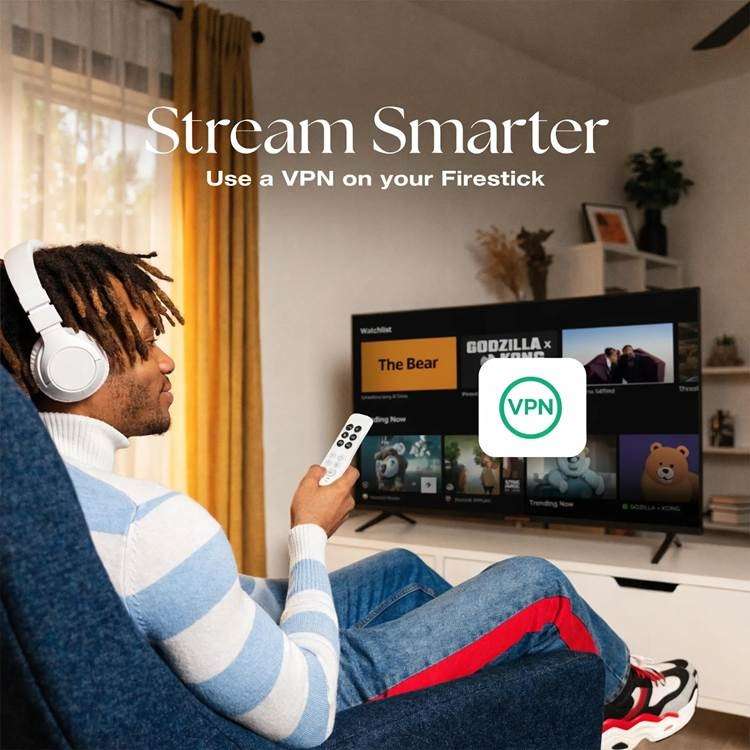
A quality VPN offers several advantages for IPTV users:
● Privacy protection: Encrypts your traffic and masks your IP address.
● Bypass geo‑blocks: Lets you access region‑restricted channels where permitted.
● Consistent routing: Some VPNs can improve stability during congested times, though speeds vary by provider.
Select a fast, reputable VPN with native Firestick support to avoid added latency.
What are the legal IPTV subscription options compatible with Firestick?
Choosing licensed IPTV services removes legal uncertainty and provides a more dependable streaming experience.
Which verified IPTV services provide reliable Firestick apps?
Verified, licensed services that work well on Firestick include:
● YouTube TV: Broad channel lineup and dependable streaming via a paid subscription.
● Philo: Budget‑friendly option focused on entertainment and lifestyle channels.
● fuboTV: Strong sports coverage and a solid live TV experience for fans.
These providers offer official apps, predictable performance, and clear licensing terms.
How to identify legal IPTV subscriptions to avoid issues?
To confirm a service is legitimate, check these points:
● Official website: A professional site with terms of service and contact details is a good sign.
● User reviews and reputation: Look for consistent feedback on reliability and customer support.
● License transparency: Legitimate providers disclose licensing or partner arrangements for their channels.
Following these checks reduces the risk of running into illegal or unreliable services.
How to troubleshoot common Firestick IPTV issues efficiently?
Even well‑configured setups can face hiccups. The right troubleshooting steps usually fix most problems.
What are common IPTV buffering and connectivity problems on Firestick?
Typical causes of interruptions include:
● Weak internet connection: Low bandwidth or unstable service causes frequent buffering.
● App issues: Corrupted data or bugs may require a reinstall.
● Network congestion: Too many devices sharing the same bandwidth hurts stream quality.
Identify the root cause (network vs. app) and apply the targeted fixes below.
How to resolve Firestick IPTV app crashes and update errors?
Try these proven fixes:
● Clear app cache: Settings > Applications > Manage Installed Applications, then clear cache for the problematic app.
● Reinstall the app: Remove and reinstall to resolve corrupt files or bad updates.
● Update software: Make sure Fire OS and the app are up to date to avoid compatibility issues.
These basic steps resolve most stability problems and restore playback quality.
Frequently asked questions
What is IPTV, and how does it work with Firestick?
IPTV delivers television content over the internet rather than traditional cable or satellite. On Firestick, IPTV apps stream live and on‑demand channels through your internet connection, giving you flexible access to many networks and media. Good bandwidth and reliable apps are essential for a smooth experience.
Can I watch local channels using IPTV on Firestick?
Yes — many legal IPTV services include local broadcast channels, but availability depends on the provider and your location. Services like Hulu + Live TV and YouTube TV often include local affiliates; always check each service’s channel lineup before subscribing.
What internet speed do I need for streaming IPTV smoothly?
For HD streaming, plan for at least 10 Mbps per stream. For 4K content, aim for 25 Mbps or higher. Stability matters as much as peak speed, so a wired connection or strong 5GHz Wi‑Fi will deliver the best results.
Are there parental control features available in IPTV apps?
Many IPTV apps include parental controls to restrict content by rating or require PINs for purchases and channel access. Kodi and other platforms also support plugins and settings to manage what children can watch. Review the app’s settings to enable and customize parental controls.
How does using a VPN impact IPTV performance on Firestick?
A VPN can enhance privacy, help access geo‑restricted content, and sometimes stabilize routing during congested periods. However, VPN performance varies — choose a fast, reputable provider with servers close to your region and native Firestick support to minimize speed loss.
Can I use IPTV on devices other than Firestick?
Absolutely. IPTV works on many devices: smart TVs, phones, tablets, PCs, and set‑top boxes. Most providers and apps offer versions for iOS, Android, and popular smart TV platforms so you can watch on the device that suits you best.
Conclusion
Using the right IPTV apps on Firestick—paired with proper setup and network tweaks—makes streaming dependable and enjoyable. Stick with licensed services for reliability, apply the optimization steps above to cut buffering, and keep your Firestick updated. With these practices, you’ll get smoother playback and a better overall viewing experience. Start with one of the vetted apps and refine settings until your setup runs reliably.
Xtreme HD IPTV offers an easy-to-use streaming solution with excellent compatibility, smooth playback, and flexible viewing options. Explore Xtreme HD IPTV today and take your Firestick viewing experience to the next level.

In the digital age, the way we consume television and media has undergone a significant transformation, and Internet Protocol Television Read more

The landscape of the streaming industry has changed dramatically in recent years, with several players vying for dominance. Typhoon IPTV Read more

How to jailbreak a Chromebook? Chromebooks have gained popularity as lightweight, efficient, and affordable devices that provide seamless integration with Read more

Kemo IPTV is a popular IPTV service provider that delivers television programs and other video content to your device. The Read more